


COMPUTER BASIC TUTORIALS (FOR BEGINNERS AND OFFICE USERS)

About this tutorial
This tutorial will help you understand how computers work and how to use them. We'll talk about how to set up a computer, the difference between hardware and software, and the types of computers you can use. We'll also explore operating systems, applications, the cloud, and a whole lot more.
Whether you're getting started with your first computer or are just looking to learn more about how they work, you'll find all of the information you need in our written lessons, and interactives. When you're done, you'll have a fundamental understanding of how to use a computer. You'll also be ready to learn even more about computers with some of our other tutorials.
So what are you waiting for? Let's get started!
Lesson 2: What is a Computer?
What is a computer?
A computer is an electronic device that manipulates information, or data. It has the ability to store, retrieve, and process data. You may already know that you can use a computer to type documents, send email, play games, and browse the Web. You can also use it to edit or create spreadsheets, presentations, and even videos.
Watch the video below to learn about different types of computers.
Hardware vs. software
Before we talk about different types of computers, let's talk about two things all computers have in common: hardware and software.
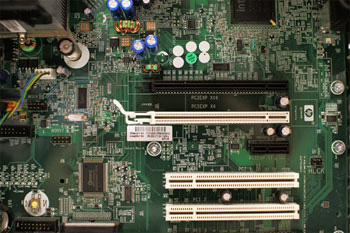
- Hardware is any part of your computer that has a physical structure, such as the keyboard or mouse. It also includes all of the computer's internal parts, which you can see in the image below.
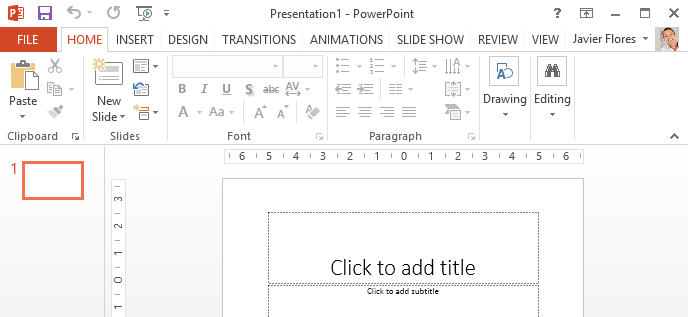
- Software is any set of instructions that tells the hardware what to do and how to do it. Examples of software include web browsers, games, and word processors. Below, you can see an image of Microsoft PowerPoint, which is used to create presentations.
Everything you do on your computer will rely on both hardware and software. For example, right now you may be viewing this lesson in a web browser (software) and using your mouse (hardware) to click from page to page. As you learn about different types of computers, ask yourself about the differences in their hardware. As you progress through this tutorial, you'll see that different types of computers also often use different types of software.
What are the different types of computers?
When most people hear the word computer, they think of a personal computer such as a desktop or laptop. However, computers come in many shapes and sizes, and they perform many different functions in our daily lives. When you withdraw cash from an ATM, scan groceries at the store, or use a calculator, you're using a type of computer.

Desktop computers
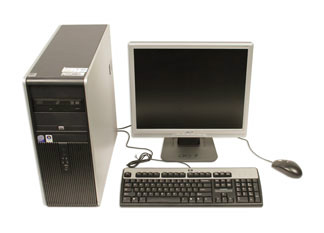
Many people use desktop computers at work, home, and school. Desktop computers are designed to be placed on a desk, and they're typically made up of a few different parts, including the computer case, monitor, keyboard, and mouse.
Laptop computers
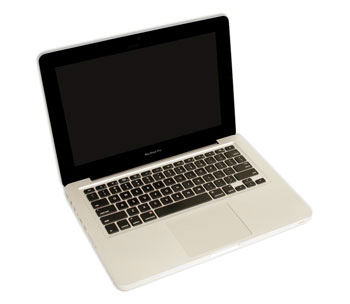
The second type of computer you may be familiar with is a laptop computer, commonly called a laptop. Laptops are battery-powered computers that are more portable than desktops, allowing you to use them almost anywhere.
Tablet computers
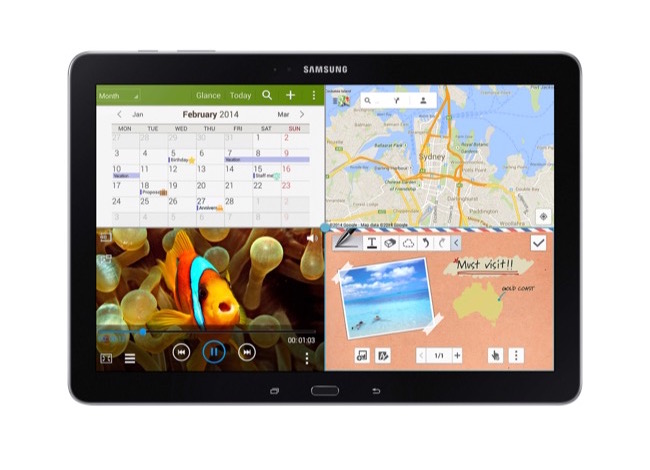
Tablet computers—or tablets—are handheld computers that are even more portable than laptops. Instead of a keyboard and mouse, tablets use a touch-sensitive screen for typing and navigation. The iPad is an example of a tablet.
Servers
A server is a computer that serves up information to other computers on a network. For example, whenever you use the Internet, you're looking at something that's stored on a server. Many businesses also use local file servers to store and share files internally.
Other types of computers
Many of today's electronics are basically specialized computers, though we don't always think of them that way. Here are a few common examples.
- Smartphones: Many cell phones can do a lot of things computers can do, including browsing the Internet and playing games. They are often called smartphones.
- Wearables: Wearable technology is a general term for a group of devices—including fitness trackers and smartwatches—that are designed to be worn throughout the day. These devices are often called wearables for short.
- Game consoles: A game console is a specialized type of computer that is used for playing video games on your TV.
- TVs: Many TVs now include applications—or apps—that let you access various types of online content. For example, you can stream video from the Internet directly onto your TV.
PCs and Macs
Personal computers come in two main styles: PC and Mac. Both are fully functional, but they have a different look and feel, and many people prefer one or the other.
PCs
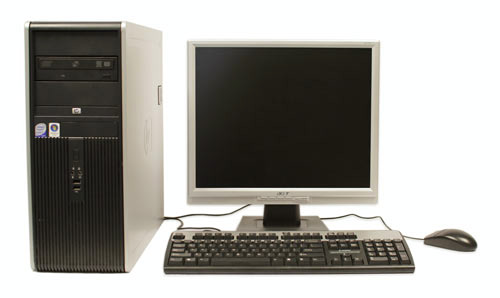
This type of computer began with the original IBM PC that was introduced in 1981. Other companies began creating similar computers, which were called IBM PC Compatible (often shortened to PC). Today, this is the most common type of personal computer, and it typically includes the Microsoft Windows operating system.
Macs
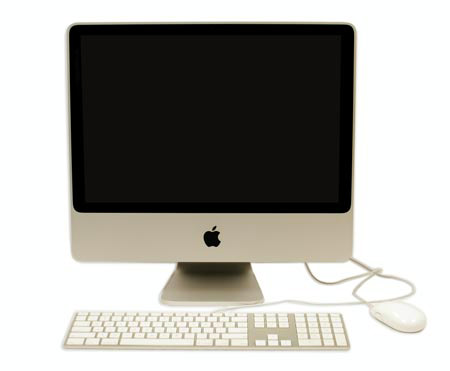
The Macintosh computer was introduced in 1984, and it was the first widely sold personal computer with a graphical user interface, or GUI (pronounced gooey). All Macs are made by one company (Apple), and they almost always use the Mac OS X operating system.
Lesson 3: Basic Parts of a Computer
Introduction
The basic parts of a desktop computer are the computer case, monitor, keyboard, mouse, and power cord. Each part plays an important role whenever you use a computer.
Watch the video below to learn about the basic parts of a desktop computer.
Computer case
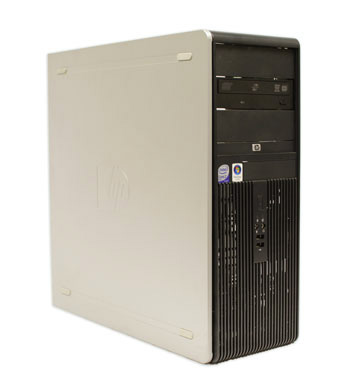
The computer case is the metal and plastic box that contains the main components of the computer, including the motherboard, central processing unit (CPU), and power supply. The front of the case usually has an On/Off button and one or more optical drives.
Computer cases come in different shapes and sizes. A desktop case lies flat on a desk, and the monitor usually sits on top of it. A tower case is tall and sits next to the monitor or on the floor. All-in-one computers come with the internal components built into the monitor, which eliminates the need for a separate case.
Monitor
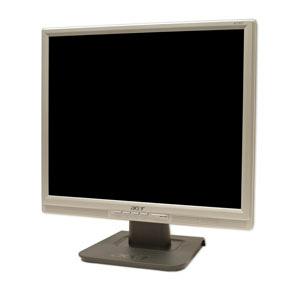
The monitor works with a video card, located inside the computer case, to display images and text on the screen. Most monitors have control buttons that allow you to change your monitor's display settings, and some monitors also have built-in speakers.
Newer monitors usually have LCD (liquid crystal display) or LED (light-emitting diode) displays. These can be made very thin, and they are often called flat-panel displays. Older monitors use CRT (cathode ray tube) displays. CRT monitors are much larger and heavier, and they take up more desk space.
Keyboard
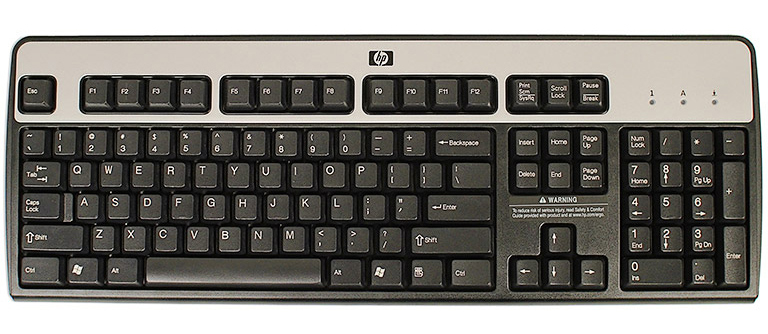
The keyboard is one of the main ways to communicate with a computer. There are many different types of keyboards, but most are very similar and allow you to accomplish the same basic tasks.
Click the buttons in the interactive below to learn about the different parts of the keyboard.
If you want to learn how to type or improve your touch-typing skills, check out our free Typing Tutorial.
Mouse
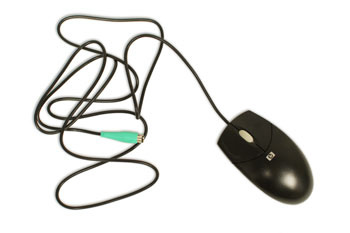
The mouse is another important tool for communicating with computers. Commonly known as a pointing device, it lets you point to objects on the screen, click on them, and move them.
There are two main mouse types: optical and mechanical. The optical mouse uses an electronic eye to detect movement and is easier to clean. The mechanical mouse uses a rolling ball to detect movement and requires regular cleaning to work properly.
To learn the basics of using a mouse, check out our interactive Mouse Tutorial.
Mouse alternatives
There are other devices that can do the same thing as a mouse. Many people find them easier to use, and they also require less desk space than a traditional mouse. The most common mouse alternatives are below.
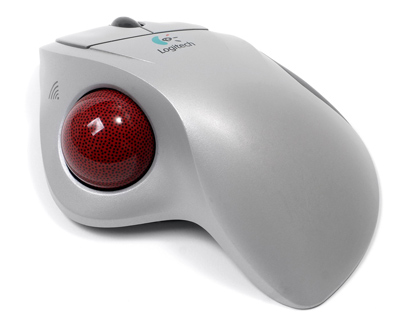
- Trackball: A trackball has a ball that can rotate freely. Instead of moving the device like a mouse, you can roll the ball with your thumb to move the pointer.
- Touchpad: A touchpad—also called a trackpad—is a touch-sensitive pad that lets you control the pointer by making a drawing motion with your finger. Touchpads are common on laptop computers.
Lesson 4: Buttons and Ports on a Computer
Introduction
Take a look at the front and back of your computer case and count the number of buttons, ports, and slots you see. Now look at your monitor and count any you find there. You probably counted at least 10, and maybe a lot more.
Each computer is different, so the buttons, ports, and sockets will vary from computer to computer. However, there are certain ones you can expect to find on most desktop computers. Learning how these ports are used will help whenever you need to connect something to your computer, like a new printer, keyboard, or mouse.
Watch the video below to learn about the buttons, ports, and slots on a desktop computer.
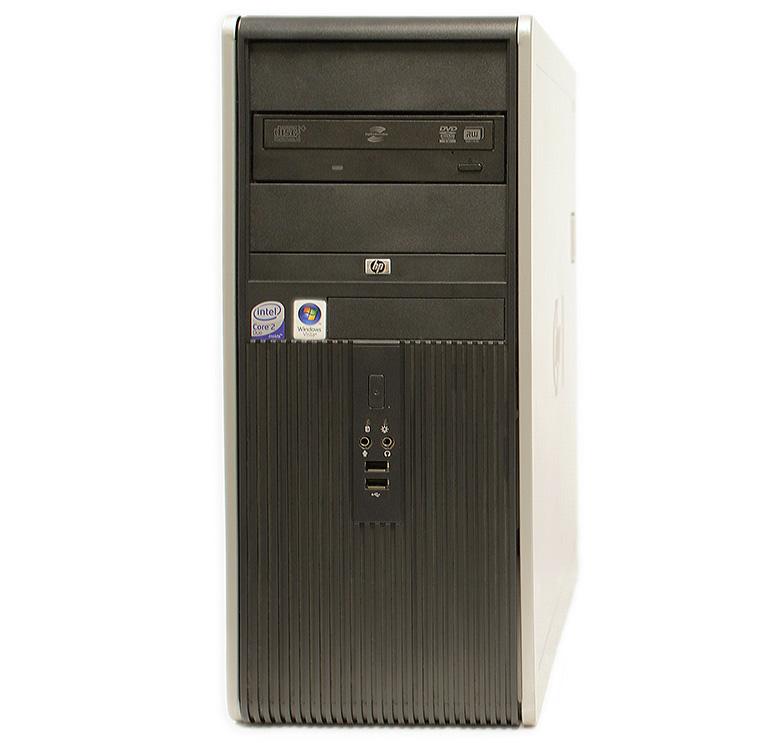
Front of a computer case
Click the buttons in the interactive below to become familiar with the front of a computer.
Back of a computer case
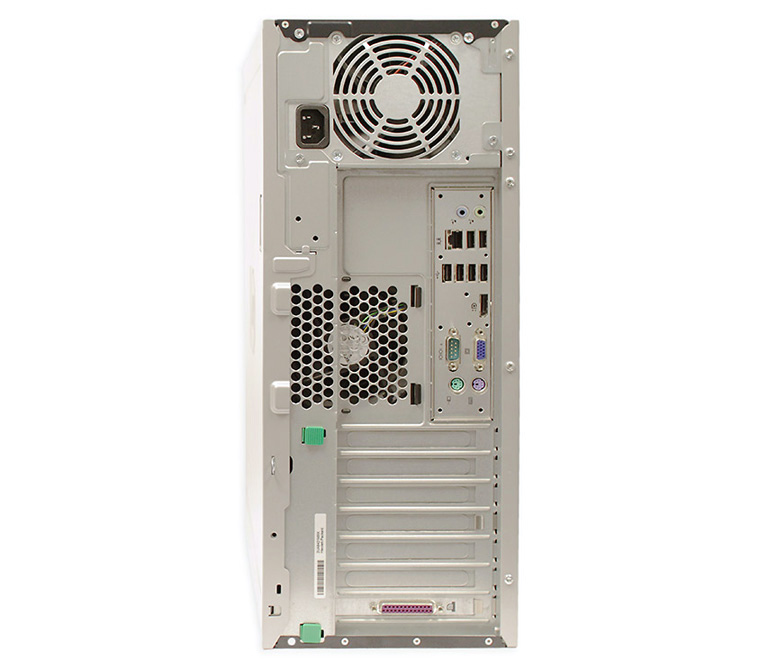
The back of a computer case has connection ports that are made to fit specific devices. The placement will vary from computer to computer, and many companies have their own special connectors for specific devices. Some of the ports may be color coded to help you determine which port is used with a particular device.
Click the buttons in the interactive below to become familiar with the back of a computer.
Other types of ports
There are many other types of ports, such as FireWire, Thunderbolt, and HDMI. If your computer has ports you don't recognize, you should consult your manual for more information.
Now you try it! Practice connecting the cables with the interactive game below.
Peripherals you can use with your computer
The most basic computer setup usually includes the computer case, monitor, keyboard, and mouse, but you can plug many different types of devices into the extra ports on your computer. These devices are called peripherals. Let's take a look at some of the most common ones.
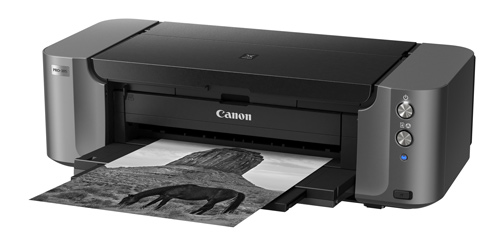
- Printers: A printer is used to print documents, photos, and anything else that appears on your screen. There are many types of printers, including inkjet, laser, and photo printers. There are even all-in-one printers, which can also scan and copy documents.
- Scanners: A scanner allows you to copy a physical image or document and save it to your computer as a digital (computer-readable) image. Many scanners are included as part of an all-in-one printer, although you can also buy a separate flatbed or handheld scanner.
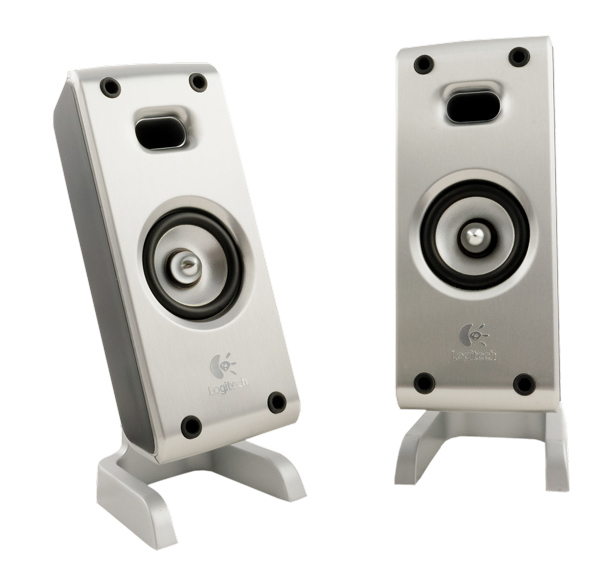
- Speakers/headphones: Speakers and headphones are output devices, which means they send information from the computer to the user—in this case, they allow you to hear sound and music. Depending on the model, they may connect to the audio port or the USB port. Some monitors also have built-in speakers.
- Microphones: A microphone is a type of input device, or a device that receives information from a user. You can connect a microphone to record sound or talk with someone else over the Internet. Many laptop computers come with built-in microphones.
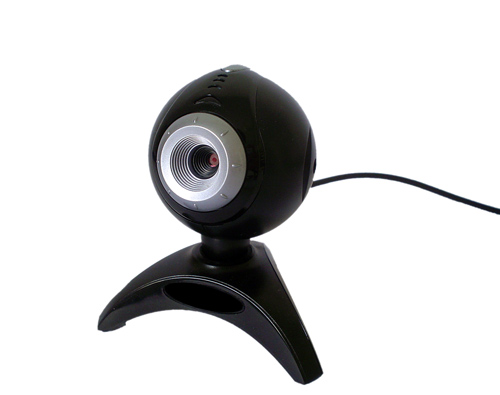
- Web cameras: A web camera—or webcam—is a type of input device that can record videos and take pictures. It can also transmit video over the Internet in real time, which allows for video chat or video conferencing with someone else. Many webcams also include a microphone for this reason.
- Game controllers and joysticks: A game controller is used to control computer games. There are many other types of controllers you can use, including joysticks, although you can also use your mouse and keyboard to control most games.
- Digital cameras: A digital camera lets you capture pictures and videos in a digital format. By connecting the camera to your computer's USB port, you can transfer the images from the camera to the computer.
- Mobile phones, MP3 players, tablet computers, and other devices: Whenever you buy an electronic device, such as a mobile phone or MP3 player, check to see if it comes with a USB cable. If it does, this means you can most likely connect it to your computer.
Lesson 5: Inside a Computer
Inside a computer
Have you ever looked inside a computer case, or seen pictures of the inside of one? The small parts may look complicated, but the inside of a computer case isn't really all that mysterious. This lesson will help you master some of the basic terminology and understand a bit more about what goes on inside a computer.
Watch the video below to learn about what's inside a desktop computer.
Motherboard
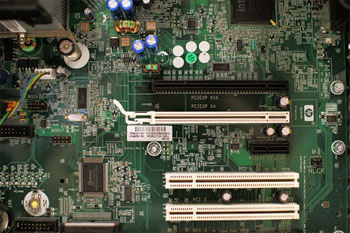
The motherboard is the computer's main circuit board. It's a thin plate that holds the CPU, memory, connectors for the hard drive and optical drives, expansion cards to control the video and audio, and connections to your computer's ports (such as USB ports). The motherboard connects directly or indirectly to every part of the computer.
CPU/processor
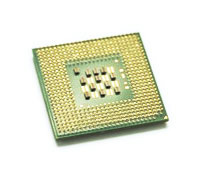
The central processing unit (CPU), also called a processor, is located inside the computer case on the motherboard. It is sometimes called the brain of the computer, and its job is to carry out commands. Whenever you press a key, click the mouse, or start an application, you're sending instructions to the CPU.
The CPU is usually a two-inch ceramic square with a silicon chip located inside. The chip is usually about the size of a thumbnail. The CPU fits into the motherboard's CPU socket, which is covered by the heat sink, an object that absorbs heat from the CPU.
A processor's speed is measured in megahertz (MHz), or millions of instructions per second; and gigahertz (GHz), or billions of instructions per second. A faster processor can execute instructions more quickly. However, the actual speed of the computer depends on the speed of many different components—not just the processor.
RAM (random access memory)
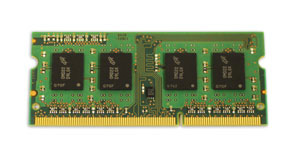
RAM is your system's short-term memory. Whenever your computer performs calculations, it temporarily stores the data in the RAM until it is needed.
This short-term memory disappears when the computer is turned off. If you're working on a document, spreadsheet, or other type of file, you'll need to save it to avoid losing it. When you save a file, the data is written to the hard drive, which acts as long-term storage.
RAM is measured in megabytes (MB) or gigabytes (GB). The more RAM you have, the more things your computer can do at the same time. If you don't have enough RAM, you may notice that your computer is sluggish when you have several programs open. Because of this, many people add extra RAM to their computers to improve performance.
Hard drive
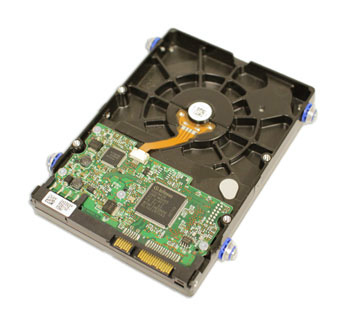
The hard drive is where your software, documents, and other files are stored. The hard drive is long-term storage, which means the data is still saved even if you turn the computer off or unplug it.
When you run a program or open a file, the computer copies some of the data from the hard drive onto the RAM. When you save a file, the data is copied back to the hard drive. The faster the hard drive, the faster your computer can start up and load programs.
Power supply unit
The power supply unit in a computer converts the power from the wall outlet to the type of power needed by the computer. It sends power through cables to the motherboard and other components.
If you decide to open the computer case and take a look, make sure to unplug the computer first. Before touching the inside of the computer, you should touch a grounded metal object—or a metal part of the computer casing—to discharge any static buildup. Static electricity can be transmitted through the computer circuits, which can seriously damage your machine.
Expansion cards
Most computers have expansion slots on the motherboard that allow you to add various types of expansion cards. These are sometimes called PCI (peripheral component interconnect) cards. You may never need to add any PCI cards because most motherboards have built-in video, sound, network, and other capabilities.
However, if you want to boost the performance of your computer or update the capabilities of an older computer, you can always add one or more cards. Below are some of the most common types of expansion cards.
Video card
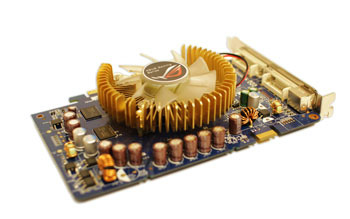
The video card is responsible for what you see on the monitor. Most computers have a GPU (graphics processing unit) built into the motherboard instead of having a separate video card. If you like playing graphics-intensive games, you can add a faster video card to one of the expansion slots to get better performance.
Sound card
The sound card—also called an audio card—is responsible for what you hear in the speakers or headphones. Most motherboards have integrated sound, but you can upgrade to a dedicated sound card for higher-quality sound.
Network card
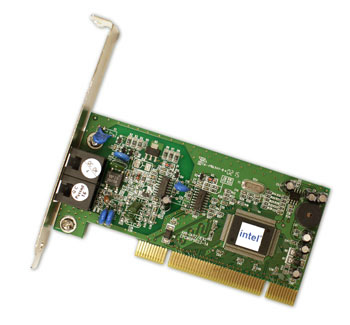
The network card allows your computer to communicate over a network and access the Internet. It can either connect with an Ethernet cable or through a wireless connection (often called Wi-Fi). Many motherboards have built-in network connections, and a network card can also be added to an expansion slot.
Bluetooth card (or adapter)
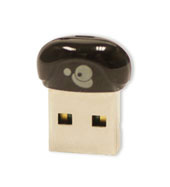
Bluetooth is a technology for wireless communication over short distances. It's often used in computers to communicate with wireless keyboards, mice, and printers. It's commonly built into the motherboard or included in a wireless network card. For computers that don't have Bluetooth, you can purchase a USB adapter, often called a dongle.
Lesson 6: Laptop Computers
What is a laptop computer?
A laptop is a personal computer that can be easily moved and used in a variety of locations. Most laptops are designed to have all of the functionality of a desktop computer, which means they can generally run the same software and open the same types of files. However, laptops also tend to be more expensive than comparable desktop computers.
Watch the video below to learn about laptop computers.
How is a laptop different from a desktop?
Because laptops are designed for portability, there are some important differences between them and desktop computers. A laptop has an all-in-one design, with a built-in monitor, keyboard, touchpad (which replaces the mouse), and speakers. This means it is fully functional, even when no peripherals are connected. A laptop is also quicker to set up, and there are fewer cables to get in the way.
You'll also have to the option to connect a regular mouse, larger monitor, and other peripherals. This basically turns your laptop into a desktop computer, with one main difference: You can easily disconnect the peripherals and take the laptop with you wherever you go.
Here are the main differences you can expect with a laptop.
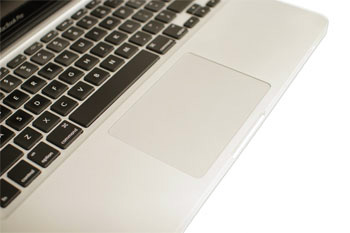
- Touchpad: A touchpad—also called a trackpad—is a touch-sensitive pad that lets you control the pointer by making a drawing motion with your finger.
- Battery: Every laptop has a battery, which allows you to use the laptop when it's not plugged in. Whenever you plug in the laptop, the battery recharges. Another benefit of having a battery is that it can provide backup power to the laptop if the power goes out.
- AC adapter: A laptop usually has a specialized power cable called an AC adapter, which is designed to be used with that specific type of laptop.
- Ports: Most laptops have the same types of ports found on desktop computers (such as USB), although they usually have fewer ports to save space. However, some ports may be different, and you may need an adapter in order to use them.
- Price: Generally speaking, laptops tend to be more expensive than a desktop computer with the same internal components. While you may find that some basic laptops cost less than desktop computers, these are usually much less powerful machines.
Lesson 7: Mobile Devices
What is a mobile device?
A mobile device is a general term for any type of handheld computer. These devices are designed to be extremely portable, and they can often fit in your hand. Some mobile devices—like tablets, e-readers, and smartphones—are powerful enough to do many of the same things you can do with a desktop or laptop computer.
Tablet computers
Like laptops, tablet computers are designed to be portable. However, they provide a different computing experience. The most obvious difference is that tablet computers don't have keyboards or touchpads. Instead, the entire screen is touch-sensitive, allowing you to type on a virtual keyboard and use your finger as a mouse pointer.
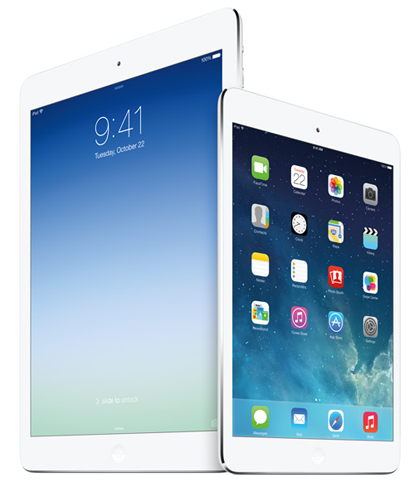
Tablet computers can't necessarily do everything traditional computers can do. For many people, a traditional computer like a desktop or laptop is still needed in order to use some programs. However, the convenience of a tablet computer means it may be ideal as a second computer.
E-readers
E-book readers—also called e-readers—are similar to tablet computers, except they are mainly designed for reading e-books (digital, downloadable books). Notable examples include the Amazon Kindle, Barnes & Noble Nook, and Kobo. Most e-readers use an e-ink display, which is easier to read than a traditional computer display. You can even read in bright sunlight, just like if you were reading a regular book.
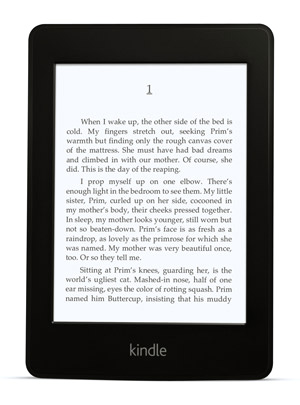
You don't need an e-reader to read e-books. They can also be read on tablets, smartphones, laptops, and desktops.
Smartphones
A smartphone is a more powerful version of a traditional cell phone. In addition to the same basic features—phone calls, voicemail, text messaging—smartphones can connect to the Internet over Wi-Fi or a cellular network (which requires purchasing a monthly data plan). This means you can use a smartphone for the same things you would normally do on a computer, such as checking your email, browsing the Web, or shopping online.
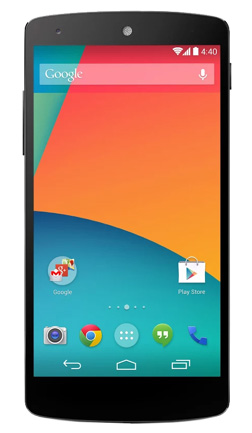
Most smartphones use a touch-sensitive screen, meaning there isn't a physical keyboard on the device. Instead, you'll type on a virtual keyboard and use your fingers to interact with the display. Other standard features include a high-quality digital camera and the ability to play digital music and video files. For many people, a smartphone can actually replace electronics like an old laptop, digital music player, and digital camera in the same device.
Lesson 8: Understanding Operating Systems
What is an operating system?
An operating system is the most important software that runs on a computer. It manages the computer's memory and processes, as well as all of its software and hardware. It also allows you to communicate with the computer without knowing how to speak the computer's language. Without an operating system, a computer is useless.
Watch the video below to learn more about operating systems.
The operating system's job
Your computer's operating system (OS) manages all of the software and hardware on the computer. Most of the time, there are several different computer programs running at the same time, and they all need to access your computer's central processing unit (CPU), memory, and storage. The operating system coordinates all of this to make sure each program gets what it needs.
Types of operating systems
Operating systems usually come pre-loaded on any computer you buy. Most people use the operating system that comes with their computer, but it's possible to upgrade or even change operating systems. The three most common operating systems for personal computers are Microsoft Windows, macOS, and Linux.
Modern operating systems use a graphical user interface, or GUI (pronounced gooey). A GUI lets you use your mouse to click icons, buttons, and menus, and everything is clearly displayed on the screen using a combination of graphics and text.
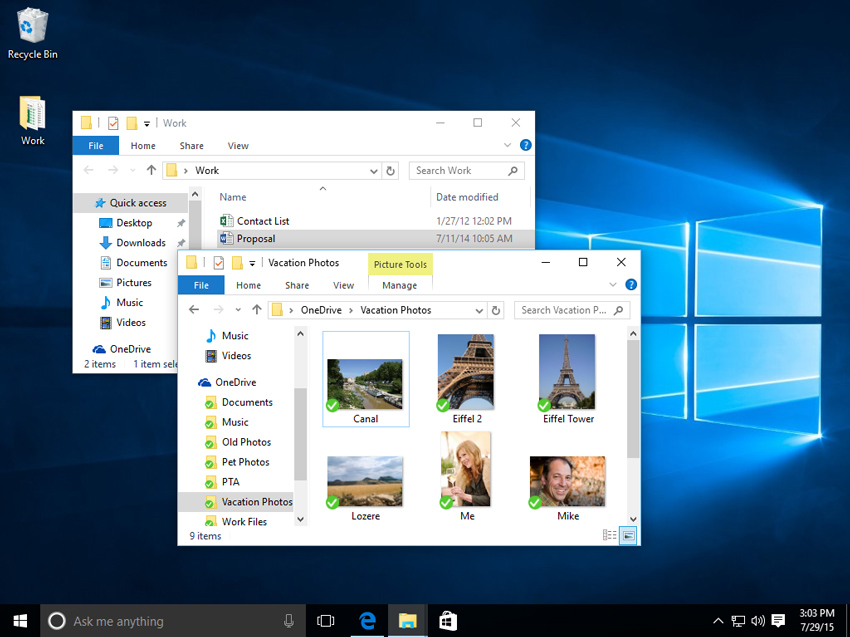
Each operating system's GUI has a different look and feel, so if you switch to a different operating system it may seem unfamiliar at first. However, modern operating systems are designed to be easy to use, and most of the basic principles are the same.
Microsoft Windows
Microsoft created the Windows operating system in the mid-1980s. There have been many different versions of Windows, but the most recent ones are Windows 10 (released in 2015), Windows 8 (2012), Windows 7 (2009), and Windows Vista (2007). Windows comes pre-loaded on most new PCs, which helps to make it the most popular operating system in the world.
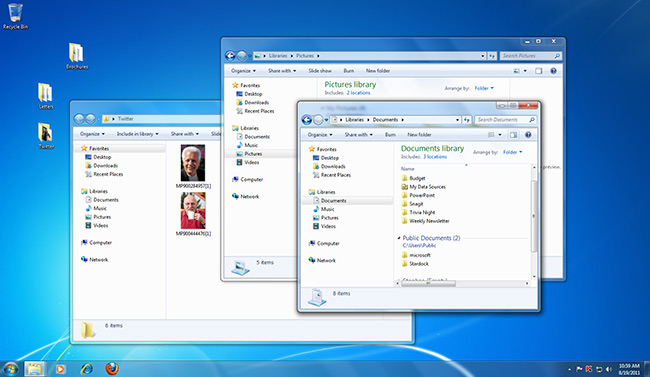
Check out our tutorials on Windows Basics and specific Windows versions for more information.
macOS
macOS (previously called OS X) is a line of operating systems created by Apple. It comes preloaded on all Macintosh computers, or Macs. Some of the specific versions include Mojave (released in 2018), High Sierra (2017), and Sierra (2016).
According to StatCounter Global Stats, macOS users account for less than 10% of global operating systems—much lower than the percentage of Windows users (more than 80%). One reason for this is that Apple computers tend to be more expensive. However, many people do prefer the look and feel of macOS over Windows.
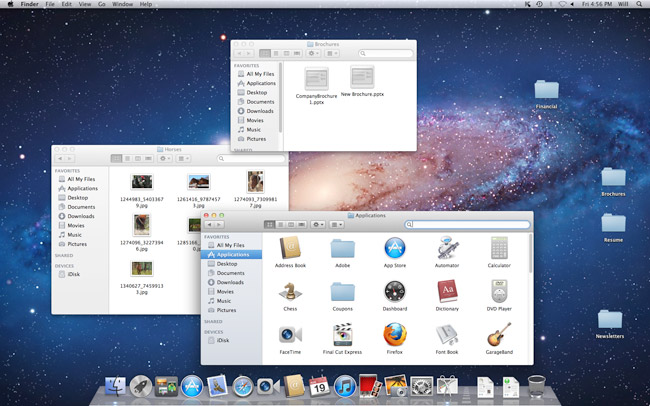
Check out our macOS Basics tutorial for more information.
Linux
Linux (pronounced LINN-ux) is a family of open-source operating systems, which means they can be modified and distributed by anyone around the world. This is different from proprietary software like Windows, which can only be modified by the company that owns it. The advantages of Linux are that it is free, and there are many different distributions—or versions—you can choose from.
According to StatCounter Global Stats, Linux users account for less than 2% of global operating systems. However, most servers run Linux because it's relatively easy to customize.
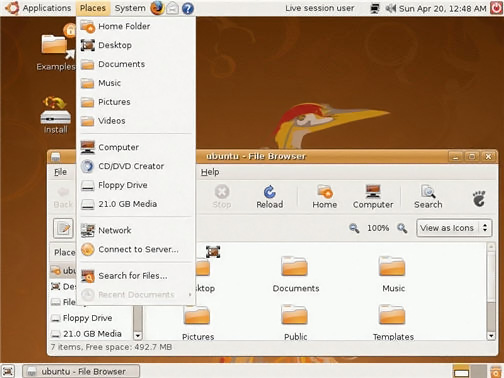
To learn more about different distributions of Linux, visit the Ubuntu, Linux Mint, and Fedora websites, or refer to our Linux Resources. For a more comprehensive list, you can visit MakeUseOf's list of The Best Linux Distributions.
Operating systems for mobile devices
The operating systems we've been talking about so far were designed to run on desktop and laptop computers. Mobile devices such as phones, tablet computers, and MP3 players are different from desktop and laptop computers, so they run operating systems that are designed specifically for mobile devices. Examples of mobile operating systems include Apple iOS and Google Android. In the screenshot below, you can see iOS running on an iPad.
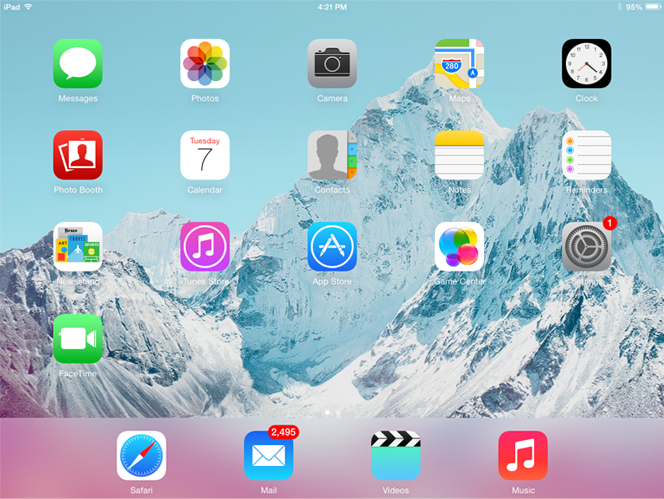
Operating systems for mobile devices generally aren't as fully featured as those made for desktop and laptop computers, and they aren't able to run all of the same software. However, you can still do a lot of things with them, like watch movies, browse the Web, manage your calendar, and play games.
To learn more about mobile operating systems, check out our Mobile Devices tutorials.
Lesson 9: Understanding Applications
What is an application?
You may have heard people talking about using a program, an application, or an app. But what exactly does that mean? Simply put, an app is a type of software that allows you to perform specific tasks. Applications for desktop or laptop computers are sometimes called desktop applications, while those for mobile devices are called mobile apps.
When you open an application, it runs inside the operating system until you close it. Most of the time, you will have more than one application open at the same time, which is known as multi-tasking.
Watch the video below to learn more about applications.
App is a common term for an application, especially for simple applications that can be downloaded inexpensively or even for free. Many apps are also available for mobile devices and even some TVs.
Desktop applications
There are countless desktop applications, and they fall into several categories. Some are more full featured (like Microsoft Word), while others may only do one or two things (like a clock or calendar app). Below are just a few types of applications you might use.
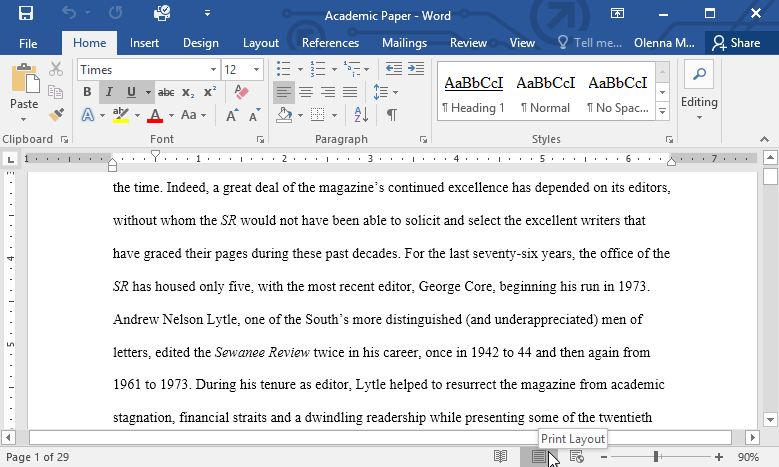
- Word processors: A word processor allows you to write a letter, design a flyer, and create many other types of documents. The most well-known word processor is Microsoft Word.
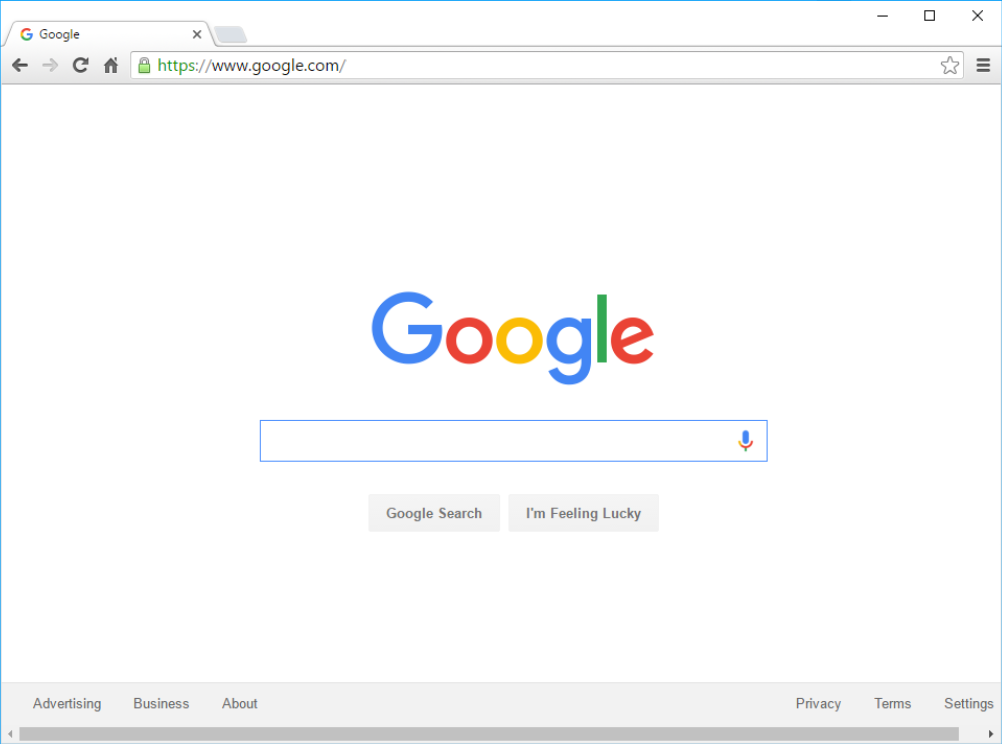
- Web browsers: A web browser is the tool you use to access the Internet. Most computers come with a web browser pre-installed, but you can also download a different one if you prefer. Examples of browsers include Internet Explorer, Mozilla Firefox, Google Chrome, and Safari.
- Media players: If you want to listen to MP3s or watch movies you've downloaded, you'll need to use a media player. Windows Media Player and iTunes are popular media players.
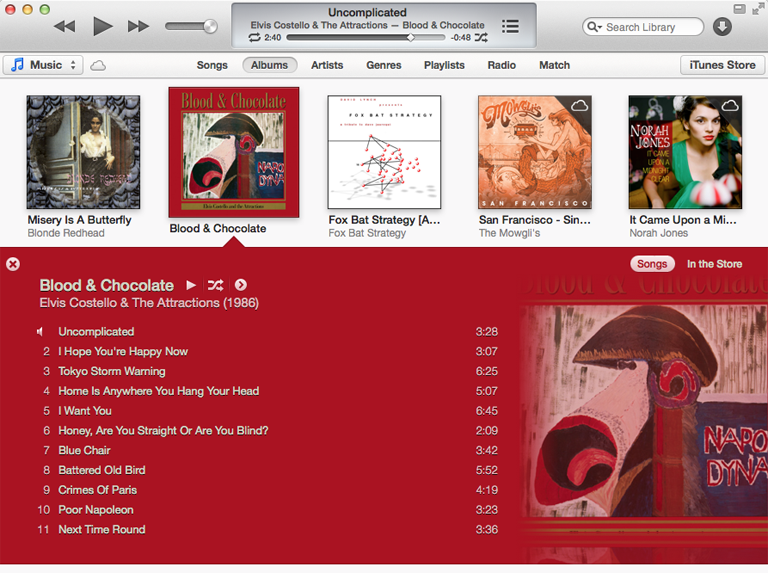
- Games: There are many types of games you can play on your computer. They range from card games like Solitaire to action games like Halo. Many action games require a lot of computing power, so they may not work unless you have a newer computer.
Mobile apps
Desktop and laptop computers aren't the only devices that can run applications. You can also download apps for mobile devices like smartphones and tablets. Here are a few examples of mobile apps.
- Gmail: You can use the Gmail app to easily view and send emails from your mobile device. It's available for Android and iOS devices.
- Instagram: You can use Instagram to quickly share photos with your friends and family. It's available for Android and iOS.
- Duolingo: With a combination of quizzes, games, and other activities, this app can help you learn new languages. It's available for Android and iOS.
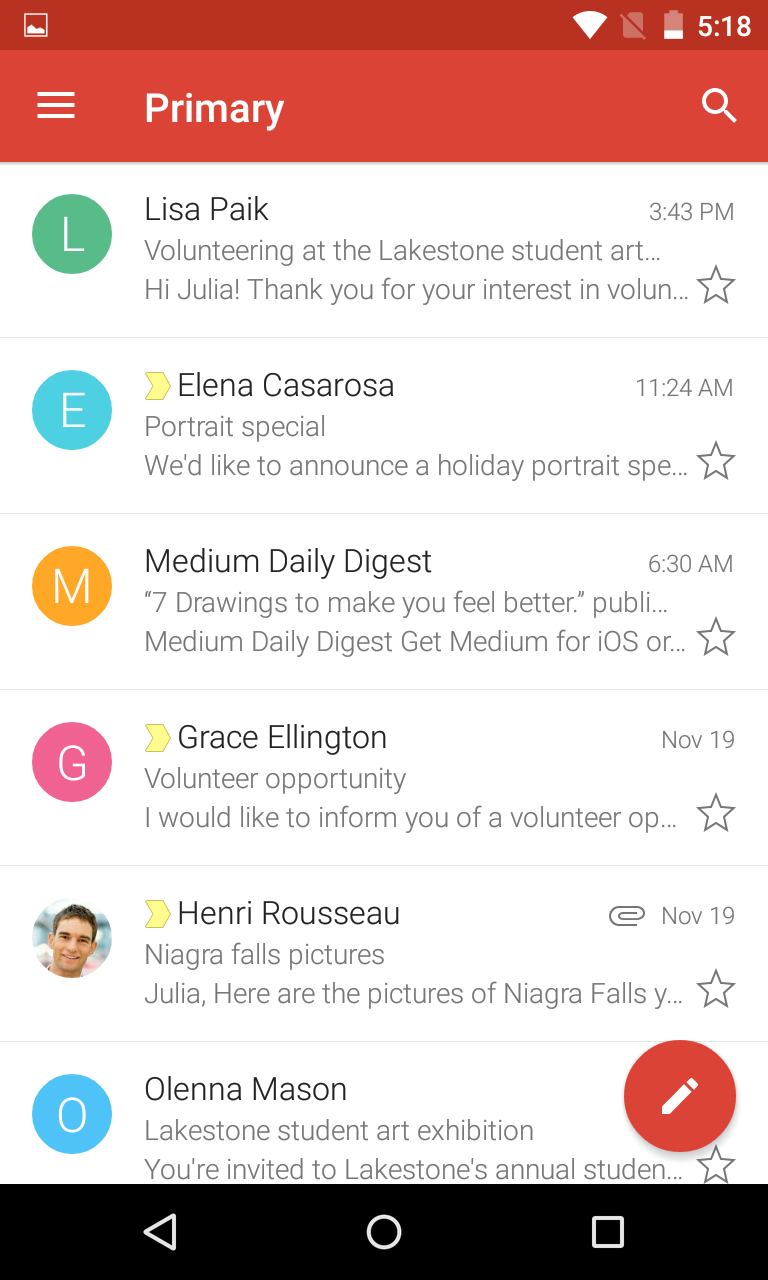
GCFLearnFree.org offers a variety of mobile apps. You can go to our Mobile Apps page to download them for free.
Installing new applications
Every computer and mobile device will come with some applications already built in, such as a web browser and media player. However, you can also purchase and install new apps to add more functionality. You can review our lessons on Installing Software on Your Windows PC, Installing Software on Your Mac, and Free Software to learn more.
Lesson 10: Setting Up a Computer
Setting up a computer
So you have a new computer and you're ready to set it up. This may seem like an overwhelming and complicated task, but it's actually a lot easier than you might think! Most computers are set up in a similar way, so it doesn't matter what brand of computer you have.
If you're setting up a new computer that's still in the box, you'll probably find a how-to guide that includes step-by-step details. Even if it didn't include instructions, you can still set up the computer in a few easy steps. We'll take you through the different steps needed to set up a typical computer.
Watch the video below to learn how to set up a desktop computer.
Setting up a laptop computer
If you have a laptop, setup should be easy: Just open it and press the power button. If the battery isn't charged, you'll need to plug in the AC adapter. You can continue using the laptop while it charges.
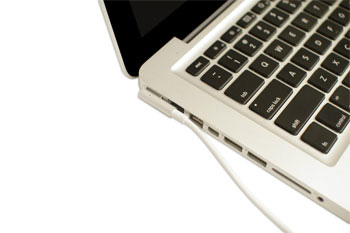
If your laptop has any peripherals, like external speakers, you may want to read the instructions below. Laptops and desktops generally use the same types of connections, so the same steps will still apply.
Setting up a desktop computer
Step 1
Unpack the monitor and computer case from the box. Remove any plastic covering or protective tape. Place the monitor and computer case on a desk or work area.
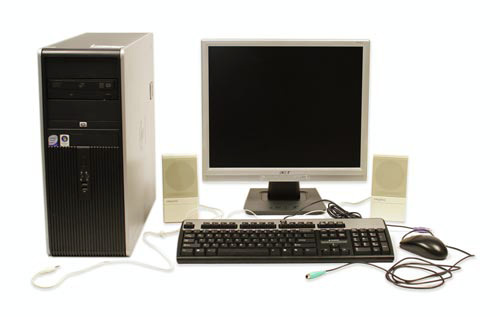
Be sure to place your computer case in an area that is well ventilated and has good air flow. This will help to prevent the computer from overheating.
Step 2
Locate the monitor cable. There are several types of monitor cables, so the one for your computer may not look like the one in the image below.
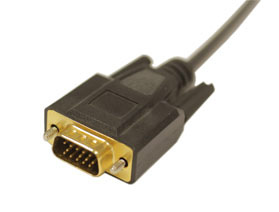
If you're having trouble finding your monitor cable, refer to the instruction manual for your computer. (If you have an all-in-one computer that's built into the monitor, you can skip to Step 4).
Step 3
Connect one end of the cable to the monitor port on the back of the computer case and the other end to the monitor. If you're using a VGA cable like the one in the picture below, you'll want to tighten the screws on the monitor cable to secure it.
Many computer cables will only fit a specific way. If the cable doesn't fit, don't force it or you might damage the connectors. Make sure the plug aligns with the port, then connect it.
To figure out which cables belong in which ports, try our Connecting Cables interactive.
Step 4
Unpack the keyboard and determine whether it uses a USB (rectangular) connector or a PS/2 (round) connector. If it uses a USB connector, plug it into any of the USB ports on the back of the computer. If it uses a PS/2 connector, plug it into the purple keyboard port on the back of the computer.
Step 5
Unpack the mouse and determine whether it uses a USB or PS/2 connector. If it uses a USB connector, plug it into any of the USB ports on the back of the computer. If it uses a PS/2 connector, plug it into the green mouse port on the back of the computer.
If your keyboard has a USB port, you can connect your mouse to the keyboard instead of connecting it directly to your computer.
If you have a wireless mouse or keyboard, you may need to connect a Bluetooth dongle (USB adapter) to your computer. However, many computers have built-in Bluetooth, so an adapter may not be necessary.
Step 6
If you have external speakers or headphones, you can connect them to your computer's audio port (either on the front or back of the computer case). Many computers have color-coded ports. Speakers or headphones connect to the green port, and microphones connect to the pink port. The blue port is the line in, which can be used with other types of devices.
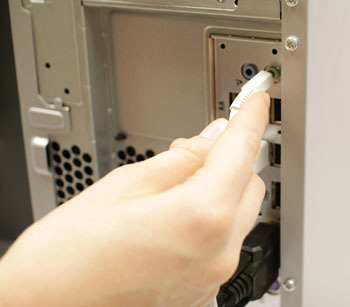
Some speakers, headphones, and microphones have USB connectors instead of the usual audio plug. These can be connected to any USB port. In addition, many computers have speakers or microphones built into the monitor.
Step 7
Locate the two power supply cables that came with your computer. Plug the first power supply cable into the back of the computer case and then into a surge protector. Then, using the other cable, connect the monitor to the surge protector.
You can also use an uninterruptable power supply (UPS), which acts as a surge protector and provides temporary power if there is a power outage.
Step 8
Finally, plug the surge protector into a wall outlet. You may also need to turn on the surge protector if it has a power switch.
If you don't have a surge protector, you can plug the computer directly into the wall. However, this is not recommended because electrical surges can damage your computer.
Step 9
If you have a printer, scanner, webcam, or other peripherals, you can connect them at this point. Many peripherals are plug and play, which means they will be recognized by your computer as soon as they are plugged in.
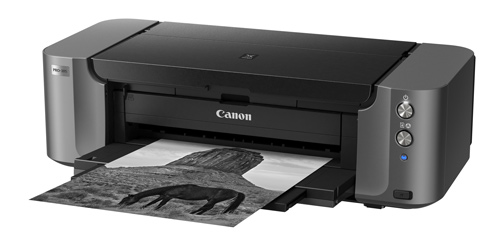
Other peripherals may include software that needs to be installed before you can begin using them. Use the instructions included with the device to install it if necessary.
Generally, peripherals are optional, and you can add new ones at any time; you don't have to add all peripherals during the initial setup of your computer.
Setup complete!
That's it—you've finished setting up your computer, so it's time to start using it! We'll talk more about how to use your computer over the next several lessons.
Lesson 11: Getting Started with Your First Computer
Getting started with your first computer
A computer is more than just another household appliance. The vast amount of information and possibilities can be overwhelming. But you can accomplish a lot with a computer, and using one can be a good experience. Let's walk through getting started with your first computer.
Turning on a computer for the first time can be different from one computer to the next. Your experience could be different from this lesson. It's OK to ask someone for help.
If you're using a desktop computer, you'll need to make sure that the keyboard, mouse, and monitor are plugged into the computer case before you continue. Review our lesson on Setting Up a Computer to learn how.
Turning on a computer
The very first step is to turn on the computer. To do this, locate and press the power button. It's in a different place on every computer, but it will have the universal power button symbol (shown below).

Once turned on, your computer takes time before it's ready to use. You may see a few different displays flash on the screen. This process is called booting up, and it can take anywhere from 15 seconds to several minutes.
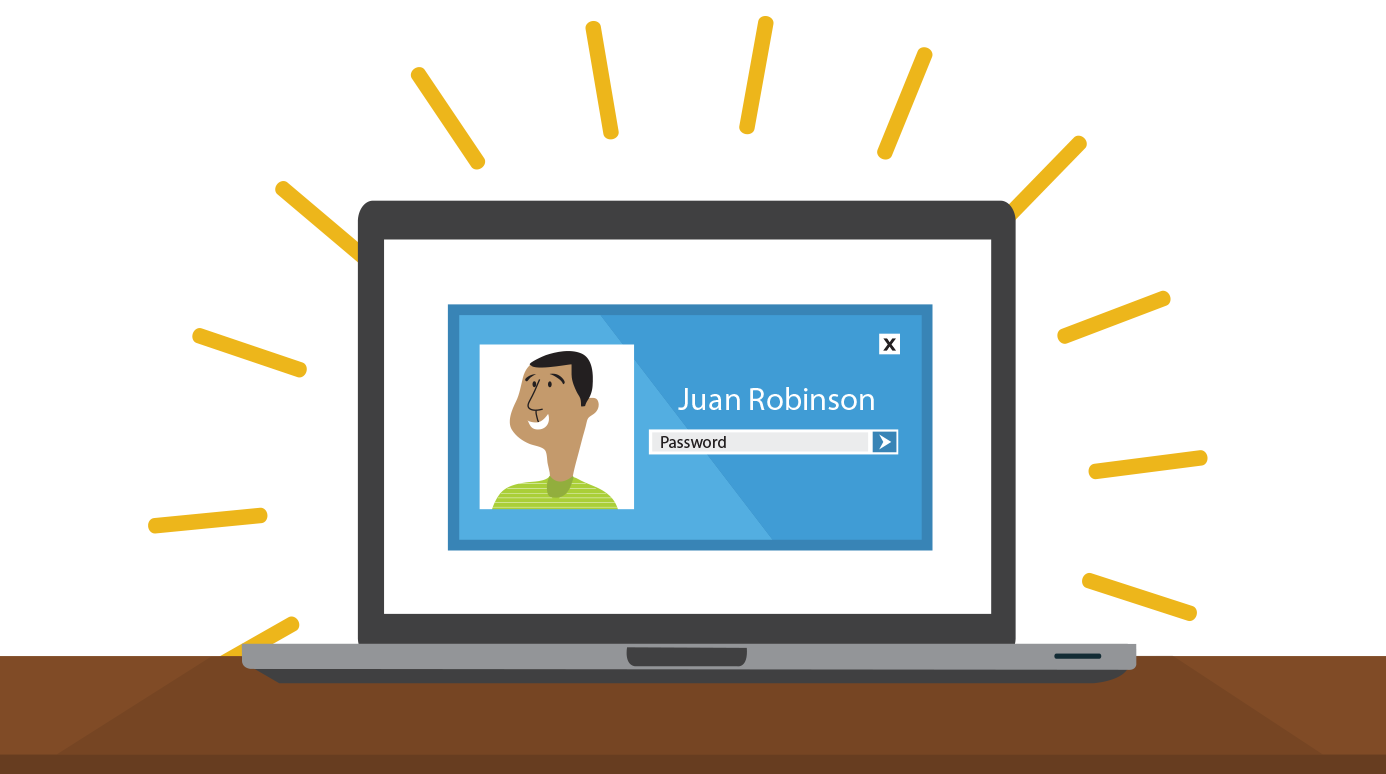
Once the computer has booted up, it may be ready to use, or it may require you to log in. This means identifying yourself by typing your user name or selecting your profile, then typing your password. If you've never logged in to your computer before, you may need to create an account.
The keyboard and mouse
You interact with a computer mainly by using the keyboard and mouse, or a trackpad on laptops. Learning to use these devices is essential to learning to use a computer. Most people find it comfortable to place the keyboard on the desk directly in front of them and the mouse to one side of the keyboard.
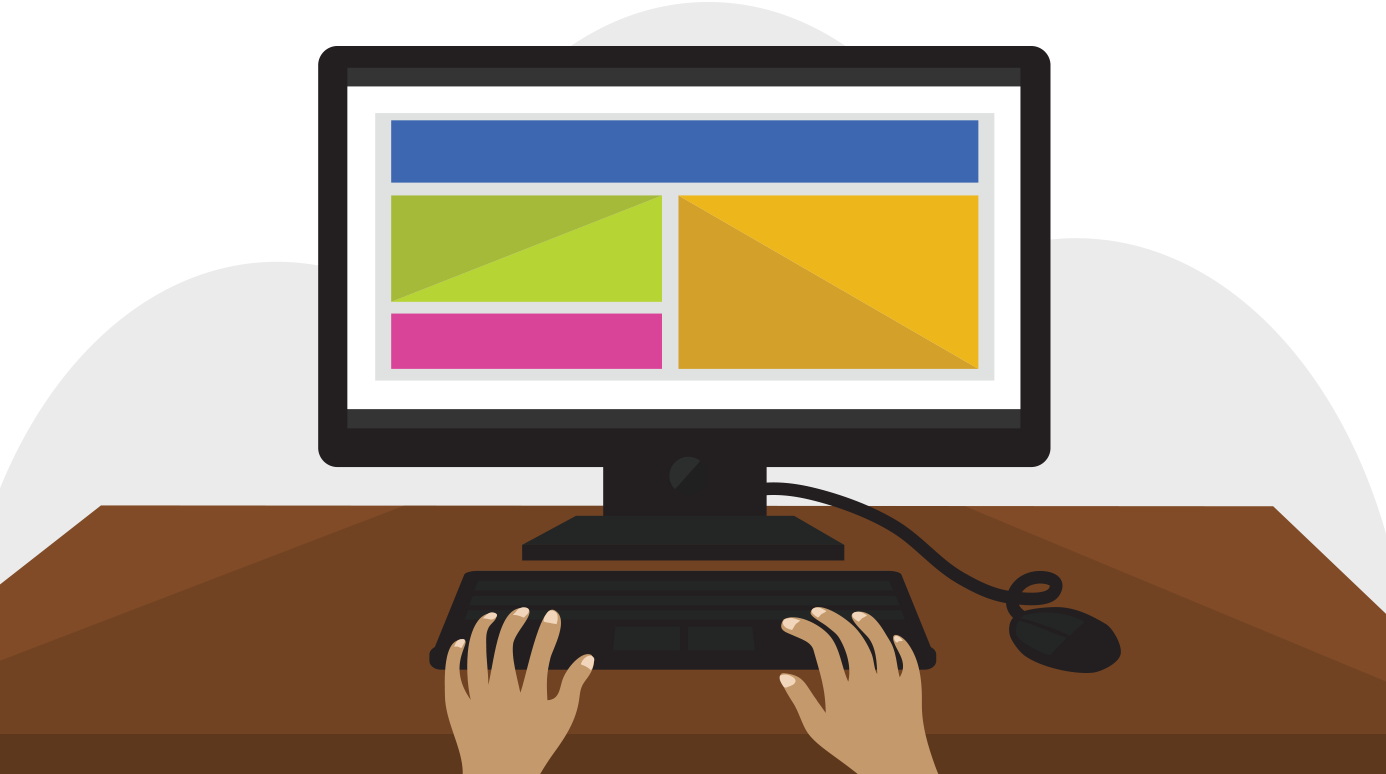
The mouse controls the pointer on the screen. Whenever you move the mouse across the desk, the pointer will move in a similar manner. A mouse usually has two buttons, which are referred to as the left button and the right button. You will often interact with the computer by moving the mouse pointer over something on the computer screen, then clicking one of the buttons.
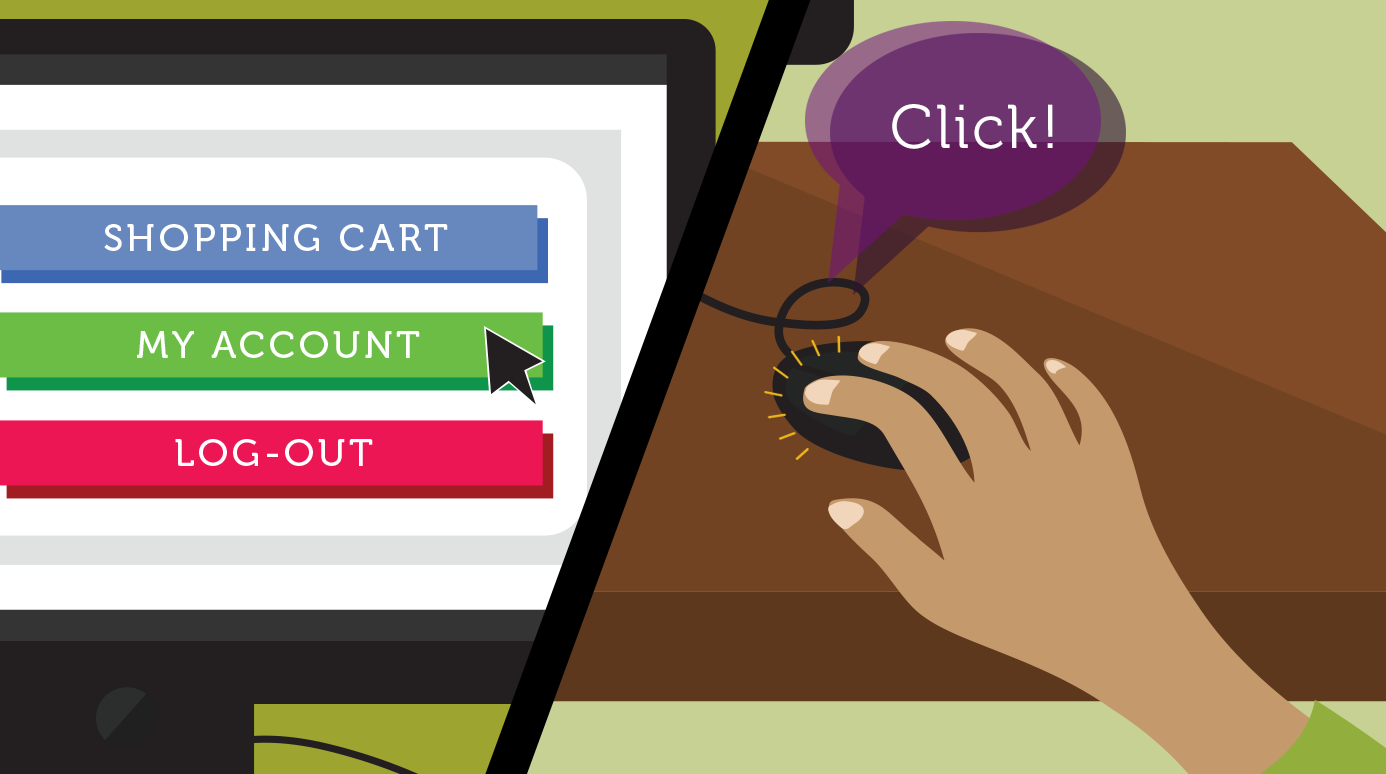
On laptops, you can use the trackpad, located below the keyboard, instead of a mouse. Simply drag your finger across the trackpad to move the pointer on the screen. Some trackpads do not have buttons, so you'll either press or tap the trackpad to click.
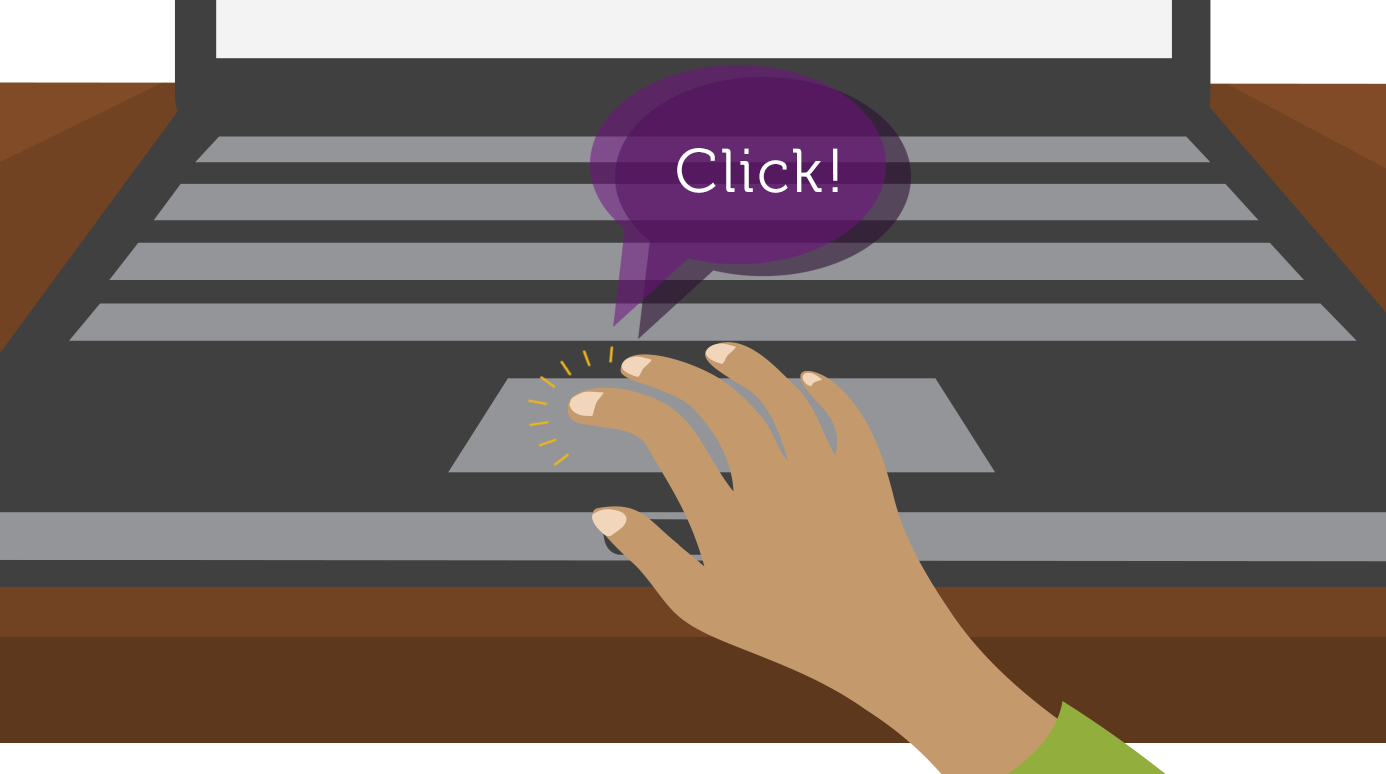
The keyboard allows you to type letters, numbers, and words into the computer. Whenever you see a flashing vertical line—called the cursor—you can start typing.
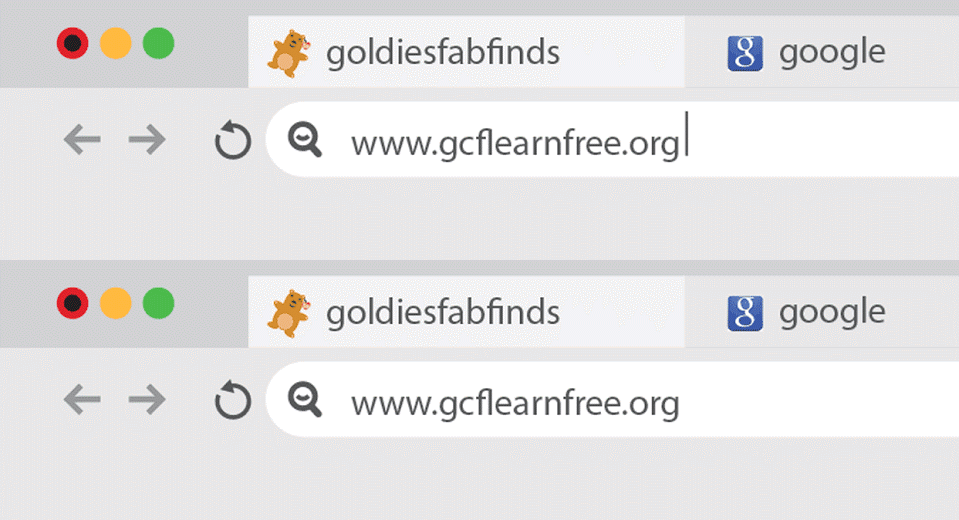
Note that the mouse pointer is also called a cursor, but it is shaped differently. The keyboard cursor is also called the insertion point.
Using a computer
The main screen you'll start from is the desktop. This is sort of like a main menu or a table of contents. From here, you can access the programs and features you need to use your computer.
Icons are used to represent the different files, applications, and commands on your computer. An icon is a small image that's intended to give you an idea at a glance of what it represents, like a logo. Double-clicking an icon on the desktop will open that application or file.

A button is a command that performs a specific function within an application. The most commonly used commands in a program will be represented by buttons.
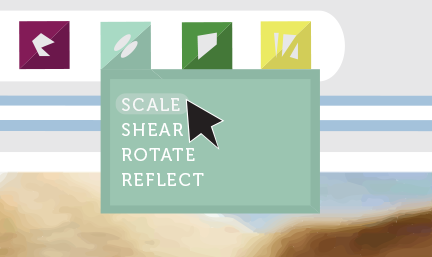
Menus are organized collections of commands and shortcuts. Click a menu to open it and display the commands and shortcuts within. Then click an item in the menu to execute it.
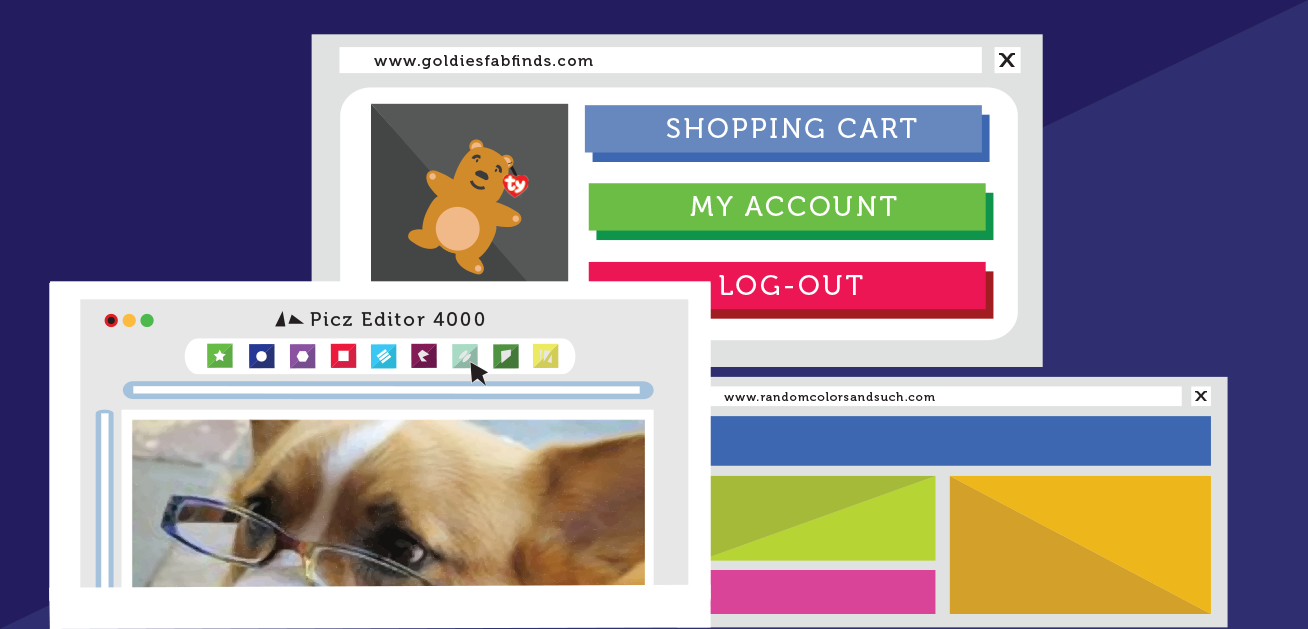
When you open an application or folder, it is displayed in its own window. A window is a contained area—like a picture within a picture—with its own menus and buttons specific to that program. You can rearrange multiple windows on the desktop and switch between them.
What's next?
OK, so these are just the basics of using a computer. In the next lesson, we'll talk about how to use your computer's specific operating system.
Lesson 12: Getting to Know the OS
Getting to know your computer's OS
Now that you know the absolute basics of using a computer, it's time to learn more about your computer's operating system. We'll be talking about the two most common operating systems in this lesson: Microsoft Windows and macOS.
Watch the video below to learn the basics of using Windows.
Watch the video below to learn the basics of using macOS
Getting to know the interface
Both PCs and Macs use a graphical user interface (GUI), and they each have their own look and feel. The interactives below will introduce you to the Windows and Mac interfaces.
Click the buttons in the interactive below to learn more about the Windows interface.
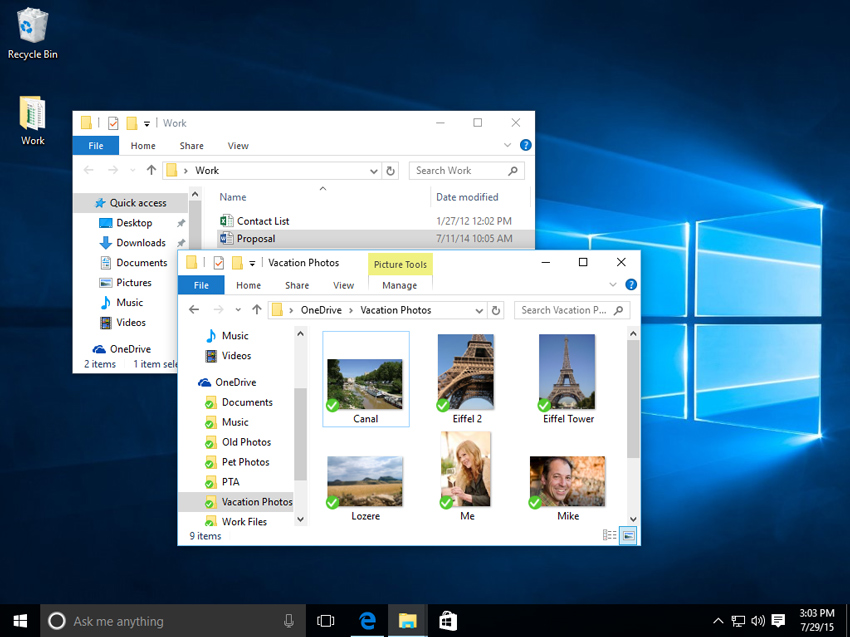
Click the buttons in the interactive below to learn more about the macOS interface.
If you have difficulty seeing or hearing—or if you have trouble manipulating the mouse or keyboard—there are many settings that can help make your computer easier to use. To learn more, check out our lesson on Using Accessibility Features.
All about your computer's file system
No matter which operating system you use, your computer uses folders to organize all of the different files and applications it contains. Folder icons on your computer are designed to look like file folders full of documents or pictures.
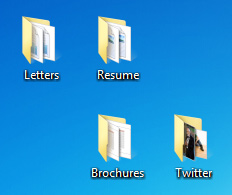
Each operating system has its own file system, which helps you find your folders and files. If you have a Windows PC, you'll use the File Explorer (also known as Windows Explorer). If you have a Mac, you'll use Finder. Here, we'll talk about the basic functions that are common to all computer file systems.
To find out more about file systems on Macs, check out the lesson on Working with Files in our macOS Basics tutorial. To learn more about PC file systems, take a look at the Working with Files lesson in our Windows Basics tutorial.
Opening your computer's file system
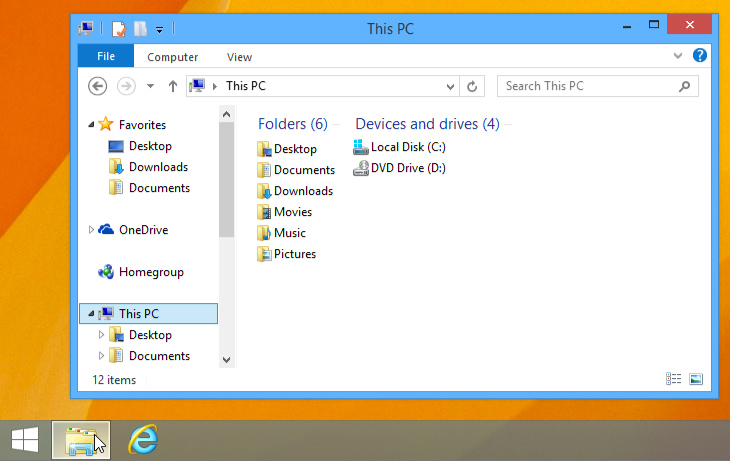
Whether you're using a PC or a Mac, the file system icon will be in the bottom-left part of the screen. On a PC, the File Explorer icon looks like a folder, as in the image below.
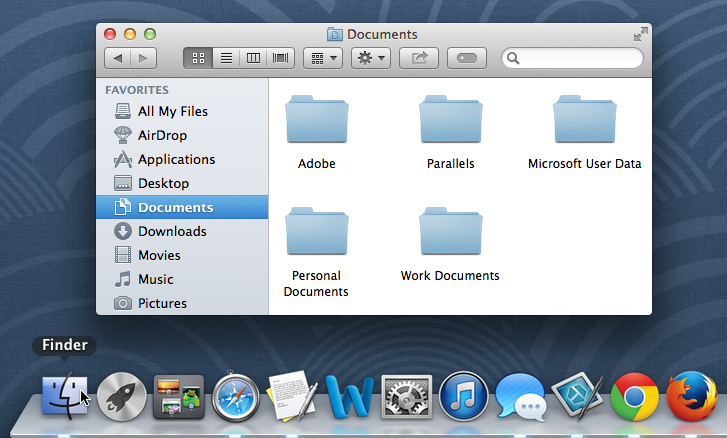
On a Mac, the Finder icon looks like a face on the Dock, as in the image below.
In both operating systems, you can also open the file system by clicking a folder from your desktop.
Basic navigation
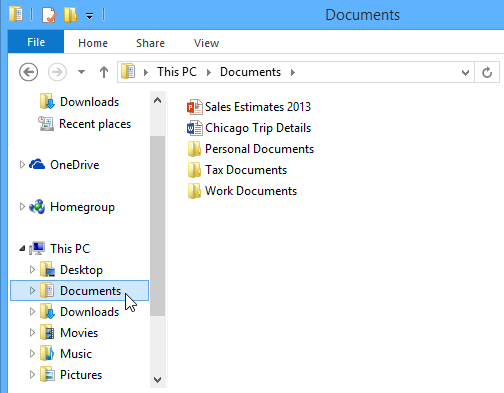
Whether you're using Windows Explorer or Finder, basic navigation will work the same way. If you see the file you want, you can double-click it with your mouse. Otherwise, you can use the Navigation pane on the left side of the window to select a different location.
Deleting files
macOS and Windows use a Trash can—or Recycle Bin—to prevent you from accidentally deleting files. When you delete a file, it is moved to the Trash can. If you change your mind, you can move the file back to its original location.
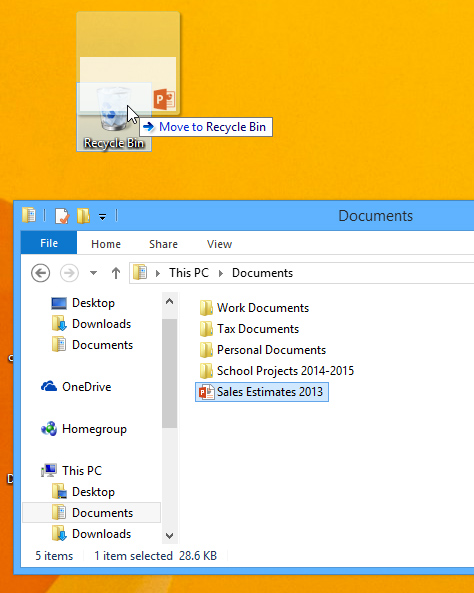
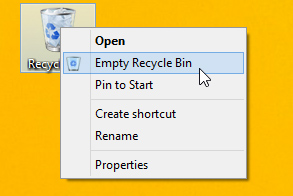
If you want to permanently delete the file, you will need to empty the Trash or Recycle Bin. To do this, right-click the icon and select Empty.
Opening files and applications
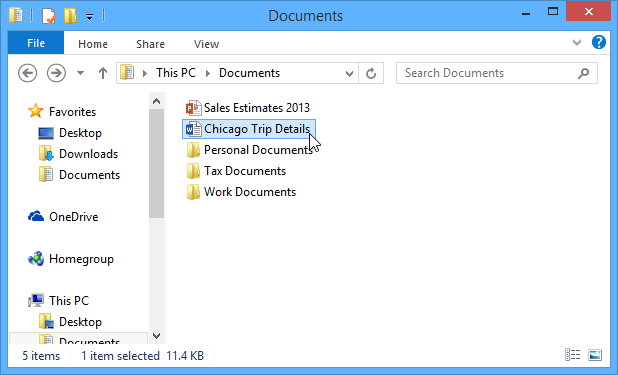
Each application on your computer has a group of file types—or formats—it is able to open. When you double-click a file, your computer will automatically use the correct application to open it. In our example, we're opening a Microsoft Word document (Chicago Trip Details), which will open in Microsoft Word.
However, there may be times you may want to open an application directly, instead of just opening a file.
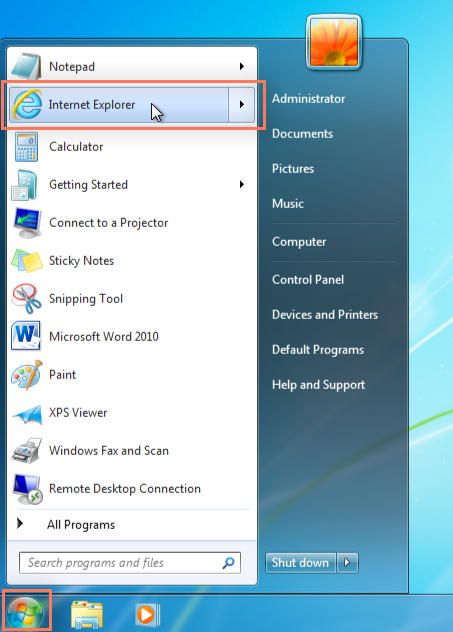
- To open an application in Windows, click the Start button, then select the desired application. If you don't see the one you want, you can click All Programs/All Apps to see a full list, or simply type the name of the application on your keyboard to search for it. In the example below, we're opening Internet Explorer.
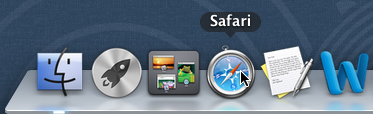
- To open an application on a Mac, click the application's icon on the Dock. If you don't see the one you want, click the Spotlight icon in the top-right corner of the screen, then type the name of the application on your keyboard to search for it. In the example below, we're opening Safari.
Adjusting your computer's settings
When you start using a new computer, you may want to begin by adjusting the computer's settings. Adjusting your settings can range from simple tasks such as changing your desktop background to more advanced tasks like adjusting your security or keyboard settings.
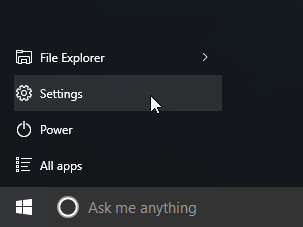
- In Windows 10, click the Start button, then select Settings.
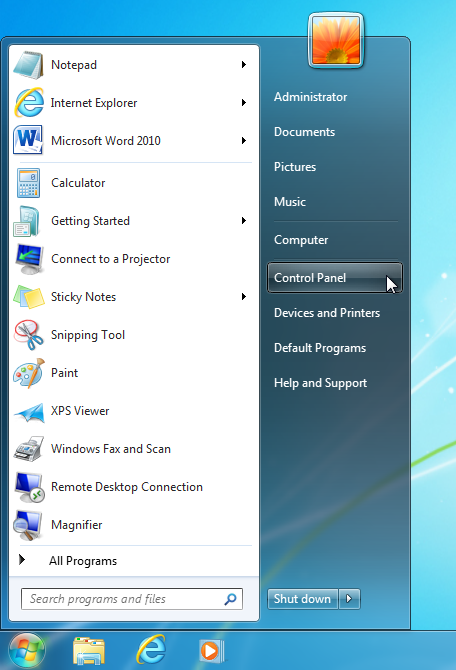
- In Windows 8.1 and earlier, click the Start button, then locate and select the Control Panel. Check out the Adjusting Your Settings lesson in our Windows Basics tutorial to learn more about the Control Panel.
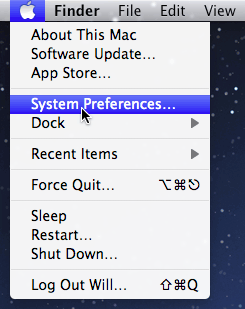
- On a Mac, click the Apple icon, then select System Preferences. Check out our Adjusting Your Settings lesson in our macOS Basics tutorial to learn more about System Preferences.
Shutting down your computer
When you're done using your computer, it's important to shut it down properly.
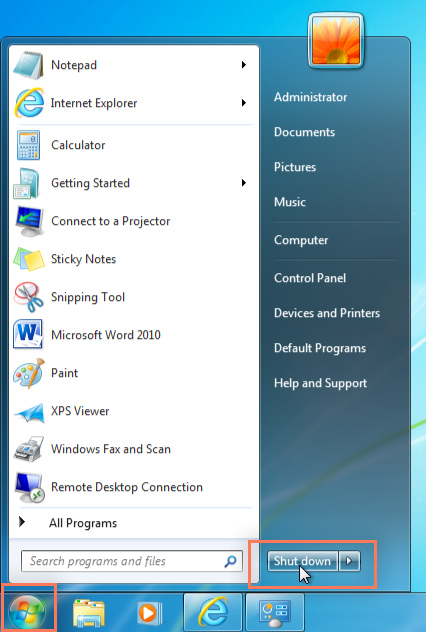
- To shut down Windows, click the Start button, then select Shut down (in some versions, this may say Turn Off Computer or look like the power symbol).
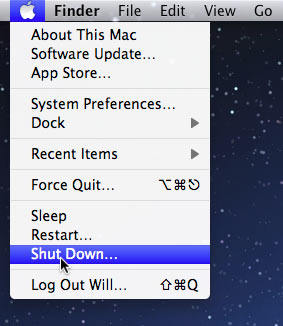
- To shut down a Mac, click the Apple icon, then select Shut Down.
Lesson 13: Connecting to the Internet
How do I connect to the Internet?
Once you've set up your computer, you may want to purchase home Internet access so you can send and receive email, browse the Web, stream videos, and more. You may even want to set up a home wireless network, commonly known as Wi-Fi, so you can connect multiple devices to the Internet at the same time.
Watch the video below to learn about connecting to the Internet.
Types of Internet service
The type of Internet service you choose will largely depend on which Internet service providers (ISPs) serve your area, along with the types of service they offer. Here are some common types of Internet service.
- Dial-up: This is generally the slowest type of Internet connection, and you should probably avoid it unless it is the only service available in your area. Dial-up Internet uses your phone line, so unless you have multiple phone lines you will not be able to use your landline and the Internet at the same time.
- DSL: DSL service uses a broadband connection, which makes it much faster than dial-up. DSL connects to the Internet via a phone line but does not require you to have a landline at home. And unlike dial-up, you'll be able to use the Internet and your phone line at the same time.
- Cable: Cable service connects to the Internet via cable TV, although you do not necessarily need to have cable TV in order to get it. It uses a broadband connection and can be faster than both dial-up and DSL service; however, it is only available where cable TV is available.
- Satellite: A satellite connection uses broadband but does not require cable or phone lines; it connects to the Internet through satellites orbiting the Earth. As a result, it can be used almost anywhere in the world, but the connection may be affected by weather patterns. Satellite connections are also usually slower than DSL or cable.
- 3G and 4G: 3G and 4G service is most commonly used with mobile phones, and it connects wirelessly through your ISP's network. However, these types of connections aren't always as fast as DSL or cable. They will also limit the amount of data you can use each month, which isn't the case with most broadband plans.
Choosing an Internet service provider
Now that you know about the different types of Internet service, you can do some research to find out what ISPs are available in your area. If you're having trouble getting started, we recommend talking to friends, family members, and neighbors about the ISPs they use. This will usually give you a good idea of the types of Internet service available in your area.
Most ISPs offer several tiers of service with different Internet speeds, usually measured in Mbps (short for megabits per second). If you mainly want to use the Internet for email and social networking, a slower connection (around 2 to 5 Mbps) might be all you need. However, if you want to download music or stream videos, you'll want a faster connection (at least 5 Mbps or higher).
You'll also want to consider the cost of the service, including installation charges and monthly fees. Generally speaking, the faster the connection, the more expensive it will be per month.
Although dial-up has traditionally been the least expensive option, many ISPs have raised dial-up prices to be the same as broadband. This is intended to encourage people to switch to broadband. We do not recommend dial-up Internet unless it's your only option.
Hardware needed
Modem
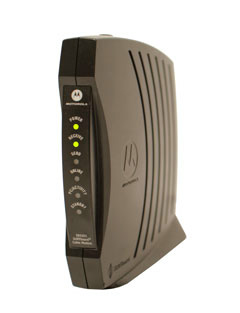
Once you have your computer, you really don't need much additional hardware to connect to the Internet. The primary piece of hardware you need is a modem.
The type of Internet access you choose will determine the type of modem you need. Dial-up access uses a telephone modem, DSL service uses a DSL modem, cable access uses a cable modem, and satellite service uses a satellite adapter. Your ISP may give you a modem—often for a fee—when you sign a contract, which helps ensure that you have the right type of modem. However, if you would prefer to shop for a better or less expensive modem, you can choose to buy one separately.
Router
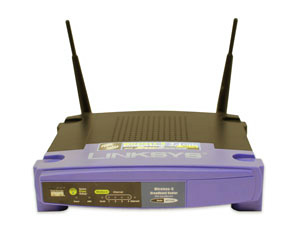
A router is a hardware device that allows you to connect several computers and other devices to a single Internet connection, which is known as a home network. Many routers are wireless, which allows you to create a home wireless network, commonly known as a Wi-Fi network.
You don't necessarily need to buy a router to connect to the Internet. It's possible to connect your computer directly to your modem using an Ethernet cable. Also, many modems include a built-in router, so you have the option of creating a Wi-Fi network without buying extra hardware.
Setting up your Internet connection
Once you've chosen an ISP, most providers will send a technician to your house to turn on the connection. If not, you should be able to use the instructions provided by your ISP—or included with the modem—to set up your Internet connection.
After you have everything set up, you can open your web browser and begin using the Internet. If you have any problems with your Internet connection, you can call your ISP's technical support number.
Home networking
If you have multiple computers at home and want to use all of them to access the Internet, you may want to create a home network, also known as a Wi-Fi network. In a home network, all of your devices connect to your router, which is connected to the modem. This means everyone in your family can use the Internet at the same time.
Your ISP technician may be able to set up a home Wi-Fi network when installing your Internet service. If not, you can review our lesson on How to Set Up a Wi-Fi Network to learn more.
If you want to connect a computer that does not have built-in Wi-Fi connectivity, you can purchase a Wi-Fi adapter that plugs into your computer's USB port.
Lesson 14: Getting Started with the Internet
Getting started with the Internet
The Internet is a global network of billions of computers and other electronic devices. With the Internet, it's possible to access almost any information, communicate with anyone else in the world, and much more. You can do all of this on your computer.
Connecting to the Internet
A device has to be connected to the Internet before you can access it. If you plan to use the Internet at home, you'll usually need to purchase an Internet connection from an Internet service provider, which will likely be a phone company, cable company, or the government. Other devices usually connect through Wi-Fi or cellular Internet connections. Sometimes libraries, cafes, and schools offer free Wi-Fi for their patrons, customers, and students.
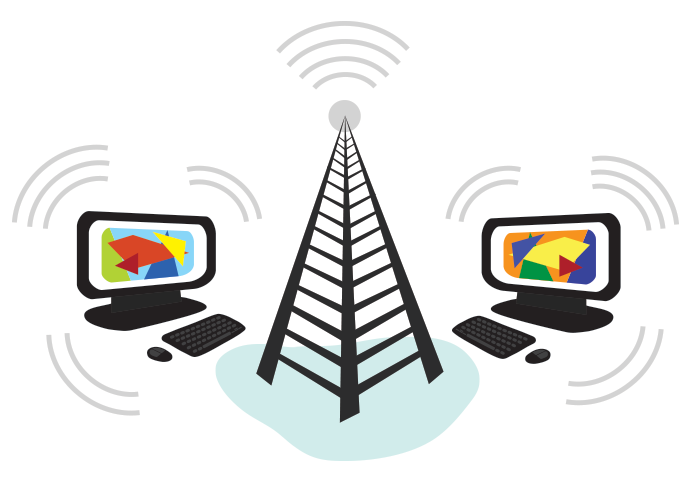
If you're not sure how to connect your device, check out our lesson on how to connect to the Internet, or ask someone for help.
Browsing the web
Most information on the Internet is on websites. Once you are connected to the Internet, you can access websites using a kind of application called a web browser.
A website is a collection of related text, images, and other resources. Websites can resemble other forms of media—like newspaper articles or television programs—or they can be interactive in a way that's unique to computers. The purpose of a website can be almost anything: a news platform, an advertisement, an online library, a forum for sharing images, or an educational site like us!
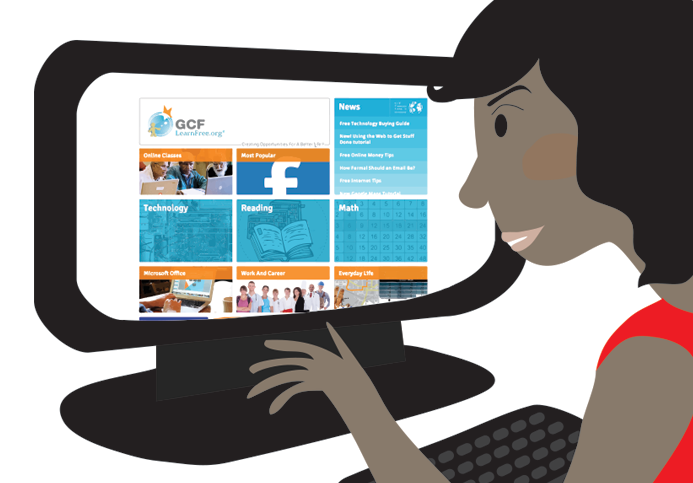
A web browser allows you to connect to and view websites. The web browser itself is not the Internet, but it displays pages on the Internet. Each website has a unique address. By typing this address into your web browser, you can connect to that website and your web browser will display it.
Navigating websites
Websites often have links to other sites, also called hyperlinks. These are often parts of the text on the website. They are usually colored blue, and sometimes they are underlined or bold. If you click the text, your browser will load a different page. Web authors use hyperlinks to connect relevant pages. This web of links is one of the most unique features of the Internet, lending to the old name World Wide Web.
Each website has a unique address, called a URL. You'll notice that when you click a link, the URL changes as your browser loads a new page. If you type a URL in the address bar in your browser, your browser will load the page associated with that URL. It's like a street address, telling your browser where to go on the Internet.
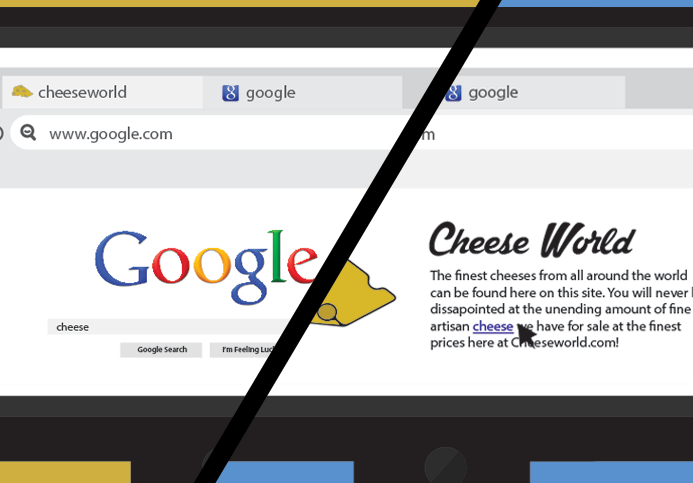
When you're looking for specific information on the Internet, a search engine can help. A search engine is a specialized website that's designed to help you find other websites. If you type keywords or a phrase into a search engine, it will display a list of websites relevant to your search terms.
Other things you can do on the Internet
One of the best features of the Internet is the ability to communicate almost instantly with anyone in the world. Email is one of the oldest and most universal ways to communicate and share information on the Internet, and billions of people use it. Social media allows people to connect in a variety of ways and build communities online.
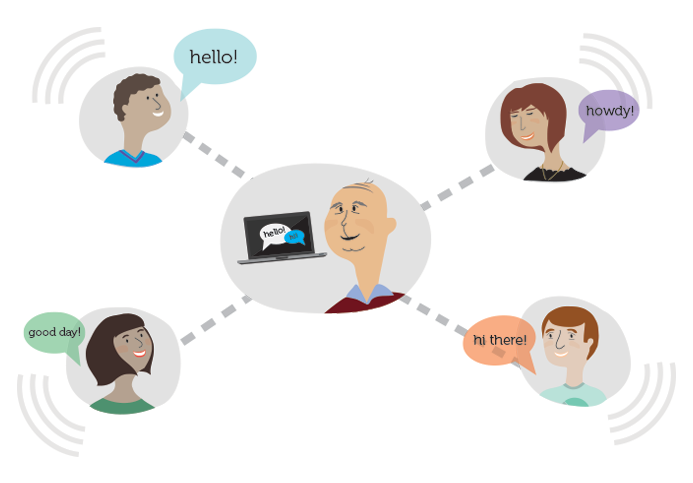
There are many other things you can do on the Internet too. There are thousands of ways to keep up with news or shop for anything online. You can pay your bills, manage your bank accounts, meet new people, watch TV, or learn new skills. You can learn or do almost anything online.
Other resources
Lesson 15: Understanding the Cloud
What is the cloud?
You may have heard people using terms like the cloud, cloud computing, or cloud storage. But what exactly is the cloud?
Simply put, the cloud is the Internet—more specifically, it's all of the things you can access remotely over the Internet. When something is in the cloud, it means it's stored on Internet servers instead of your computer's hard drive.
Watch the video below to learn more about the cloud.
Why use the cloud?
Some of the main reasons to use the cloud are convenience and reliability. For example, if you've ever used a web-based email service, such as Gmail or Yahoo! Mail, you've already used the cloud. All of the emails in a web-based service are stored on servers rather than on your computer's hard drive. This means you can access your email from any computer with an Internet connection. It also means you'll be able to recover your emails if something happens to your computer.
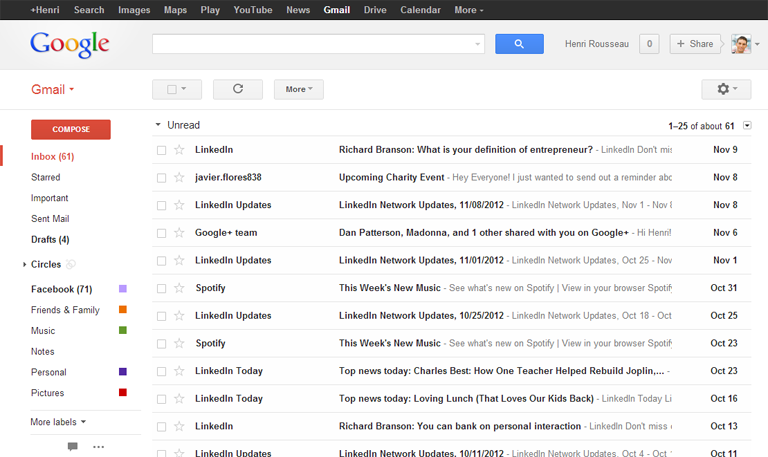
Let's look at some of the most common reasons to use the cloud.
- File storage: You can store all types of information in the cloud, including files and email. This means you can access these things from any computer or mobile device with an Internet connection, not just your home computer. Dropbox and Google Drive are some of the most popular cloud-based storage services.
- File sharing: The cloud makes it easy to share files with several people at the same time. For example, you could upload several photos to a cloud-based photo service like Flickr or iCloud Photos, then quickly share them with friends and family.
- Backing up data: You can also use the cloud to protect your files. Apps like Mozy and Carbonite automatically back up your data to the cloud. This way, if your computer ever is lost, stolen, or damaged, you'll still be able to recover these files from the cloud.
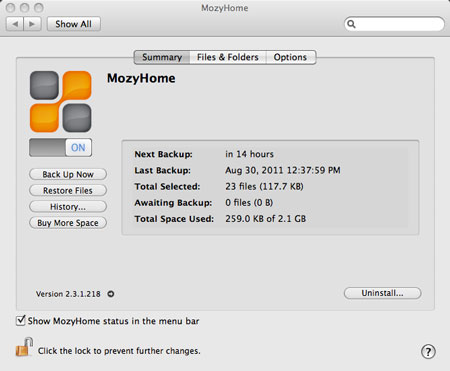
What is a web app?
Previously, we talked about how desktop applications allow you to perform tasks on your computer. But there are also web applications—or web apps—that run in the cloud and do not need to be installed on your computer. Many of the most popular sites on the Internet are actually web apps. You may have even used a web app without realizing it! Let's take a look at some popular web apps.
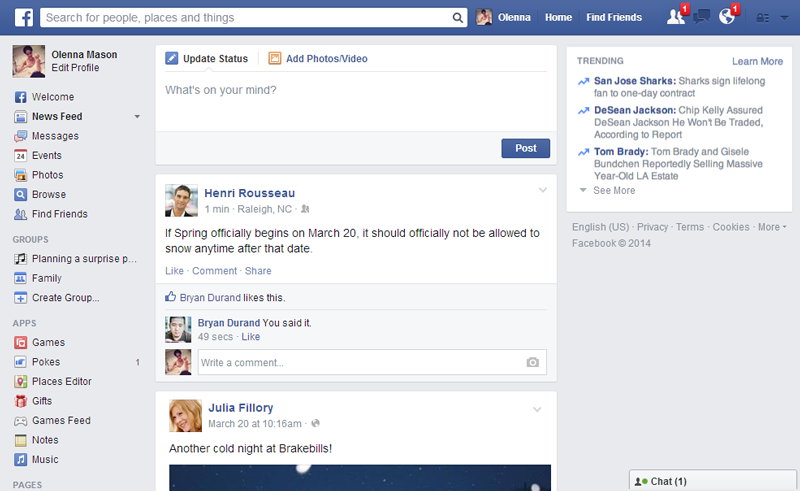
- Facebook: Facebook lets you create an online profile and interact with your friends. Profiles and conversations can be updated at any time, so Facebook uses web app technologies to keep the information up to date.
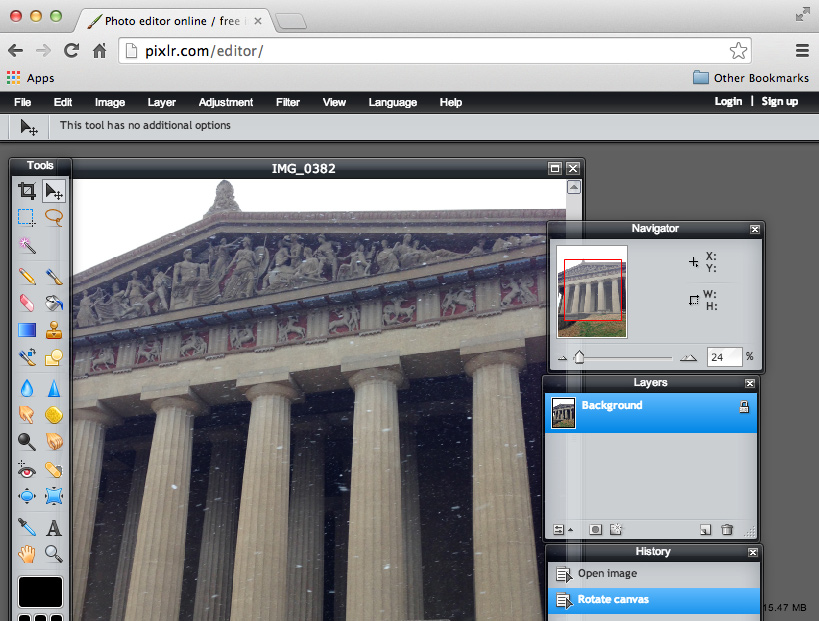
- Pixlr: Pixlr is an image editing application that runs in your web browser. Much like Adobe Photoshop, it includes many advanced features, like color correction and sharpening tools.
- Google Docs: Google Docs is an office suite that runs in your browser. Much like Microsoft Office, you can use it to create documents, spreadsheets, presentations, and more. And because the files are stored in the cloud, it's easy to share them with others.
Lesson 16: Keeping Your Computer Clean
Keeping your computer physically clean
Dust isn't just unattractive—it can potentially damage or even destroy parts of your computer. Cleaning your computer regularly will help you keep it working properly and avoid expensive repairs.
Watch the video below to learn how to keep a computer clean.
Cleaning the keyboard
Dust, food, liquid, and other particles can get stuck underneath the keys on your keyboard, which can prevent it from working properly. The basic cleaning tips below can help keep your keyboard clean.
- Unplug the keyboard from the USB or PS/2 port. If the keyboard is plugged into the PS/2 port, you will need to shut down the computer before unplugging it.
- Turn the keyboard upside down and gently shake it to remove dirt and dust.
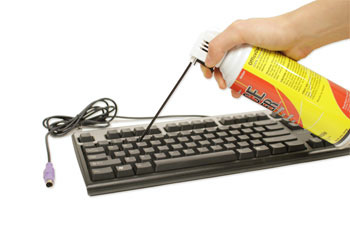
- Use a can of compressed air to clean between the keys.
- Moisten a cotton cloth or paper towel with rubbing alcohol and use it to clean the tops of the keys. Do not pour alcohol or any other liquid directly onto the keys.
- Reconnect the keyboard to the computer once it is dry. If you are connecting it to a PS/2 port, you will need to connect it before turning on the computer.
Dealing with liquids
If you spill liquid on the keyboard, quickly shut down the computer and disconnect the keyboard. Then turn the keyboard upside down and allow the liquid to drain.
If the liquid is sticky, you will need to hold the keyboard on its side under running water to rinse away the sticky liquid. Then turn the keyboard upside down to drain for two days before reconnecting it. Please note that keyboard may not be fixable at this point, but the method above is probably the best option.
To prevent this situation altogether, we recommend keeping drinks away from the computer area.
Cleaning the mouse
There are two main mouse types: optical and mechanical. Each is cleaned in basically the same way, although the mechanical mouse requires a bit more work.
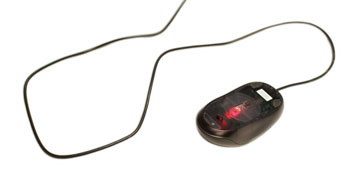
- Optical mice require no internal cleaning because they do not contain any rotating parts; however, they can get sticky over time as dust collects near the light emitter. This can cause erratic cursor movement or prevent the mouse from working properly.
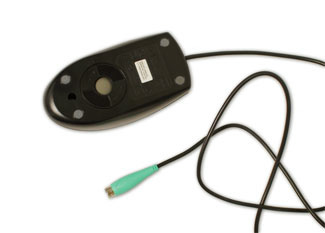
- Mechanical mice are especially susceptible to dust and particles that can accumulate inside the mouse, which can make it difficult to track—or move—properly. If the mouse pointer does not move smoothly, the mouse may need to be cleaned.
The basic cleaning tips below will help keep your mouse clean:
- Unplug the mouse from the USB or PS/2 port. If the mouse is plugged into the PS/2 port, you will need to shut down the computer before unplugging it.
- Moisten a cotton cloth with rubbing alcohol, and use it to clean the top and bottom of the mouse.
- If you have a mechanical mouse, remove the tracking ball by turning the ball-cover ring counter-clockwise. Then clean the tracking ball and the inside of the mouse with a cotton cloth moistened with rubbing alcohol.
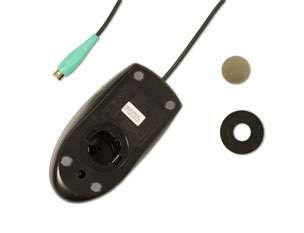
- Allow all of the parts to dry before reassembling and reconnecting the mouse. If you are connecting it to a PS/2 port, you will need to connect it before turning on the computer.
If you just want to give the mouse a quick cleaning, place it on a clean sheet of paper and move the mouse back and forth. Some of the dust and particles should rub off onto the paper.
Cleaning the monitor
Dirt, fingerprints, and dust can make your computer screen difficult to read; however, it's easy to clean your screen when needed. There are monitor-cleaning kits you can buy, but they may damage your monitor if they're designed for a different type of monitor. For example, a monitor cleaner that is designed for glass screens may not work with some non-glass LCD screens. The safest method is simply to use a soft clean cloth moistened with water.
Do not use glass cleaner to clean a monitor. Many screens have anti-glare coatings that can be damaged by glass cleaner.
- Turn off the computer.
- Unplug the monitor from the power. If you are using a laptop, unplug the laptop.
- Use a soft clean cloth moistened with water to wipe the screen clean.
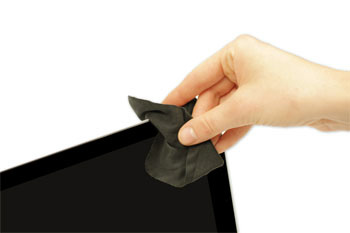
Do not spray any liquids directly onto the screen. The liquid could leak into the monitor and damage the internal components.
Tips for cleaning other computer surfaces
From time to time, you should clean your computer case and the sides and back of the monitor to avoid a buildup of dust and dirt. Here are a few tips you can use when cleaning these surfaces.
- Dust is your computer's main enemy. Use an anti-static cloth to lightly dust your computer casing. Do not use furniture cleaners or strong solvents.
- Use a can of compressed air to blow out debris from the air intake slots.
- Ammonia diluted with water—or glass cleaner comprised mostly of ammonia and water—is a safe cleaning solution for computer surfaces. The milder the solution, the better.
- Clean the monitor housing and case (but not the monitor screen) by spraying a safe cleaning solution onto a paper towel or anti-static cloth and wiping in a downward motion.
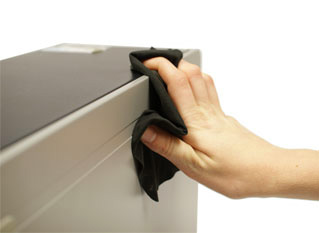
Keep it cool
Don't restrict airflow around your computer. A computer can generate a lot of heat, so the casing has fans that keep it from overheating. Avoid stacking papers, books, and other items around your computer.
Many computer desks have an enclosed compartment for the computer case. If you have this type of desk, you may want to position the case so it is not against the back side of the desk. If the compartment has a door, you may want to leave it open to improve airflow.
Lesson 17: Protecting Your Computer
Protecting your computer
Your computer faces many potential threats, including viruses, malware, and hard drive failure. This is why it's important to do everything you can to protect your computer and your files.
Watch the video below to learn how to protect your computer from viruses, as well as how to back up your files.
Safeguarding against malware
Malware is any type of software that is designed to damage your computer or gain unauthorized access to your personal information. It includes viruses, worms, Trojan horses, and spyware. Most malware is distributed over the Internet and is often bundled with other software.
The best way to guard against malware is to install antivirus software, such as Bitdefender, Norton, or Kaspersky. Antivirus software helps to prevent malware from being installed, and it can also remove malware from your computer.
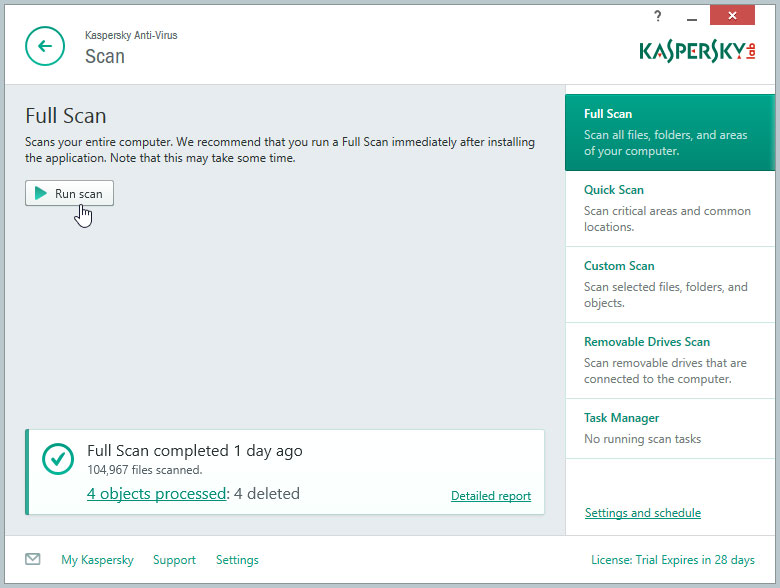
It's also important to stay smart when you're browsing the Web or using email. If a website or email attachment looks suspicious, trust your instincts. Keep in mind that your antivirus program may not catch everything, so it's best to avoid downloading anything that might contain malware.
To learn more about protecting your computer from malware, check out How to Avoid Malware in our Internet Safety tutorial.
Backing up your computer
Imagine what would happen if your computer suddenly stopped working. Would you lose any important documents, photos, or other files? It may be possible to repair your computer, but your files may be lost forever. Luckily, you can prevent this by creating backup copies of all of your files (or just the important ones) on an external hard drive or an online backup service.
External hard drives
You can purchase an external hard drive and copy the contents of your computer to it. The initial backup could take several hours, so you will need to select a period of time when you do not need access to your computer. Running the backup overnight usually works best. Follow-up backups should be conducted on a regular basis, but they should not take as long.
One drawback is that an external hard drive can be lost, damaged, or stolen—just as your computer might be. This is why it's important to keep your drive in a secure location when not in use.
Online backup services
You can also back up your files to an online backup service like Mozy, Carbonite, or Box. These services will back up your your files in the cloud, which means you'll be able to recover them from any computer with an Internet connection. The amount of storage provided by these sites varies, and you will probably need to pay a fee for adequate storage space.
One drawback to online backup services is that the initial backup can be slow and may even take days to upload if you have a lot of files. However, subsequent backups should not take as long.
Other maintenance techniques
To keep your computer running smoothly, it's important to keep files and folders uncluttered. Cluttered or unorganized folders make it more difficult to find the files you need. Additionally, unwanted files can eventually fill up your hard drive, which will make your computer slower and more difficult to use. Here are a few things you can do to delete unwanted files and improve your computer's performance.
- Delete files: If you have any unwanted files, you can delete them manually. To do this, drag them to the Recycle Bin or Trash, then empty it to permanently delete the files.
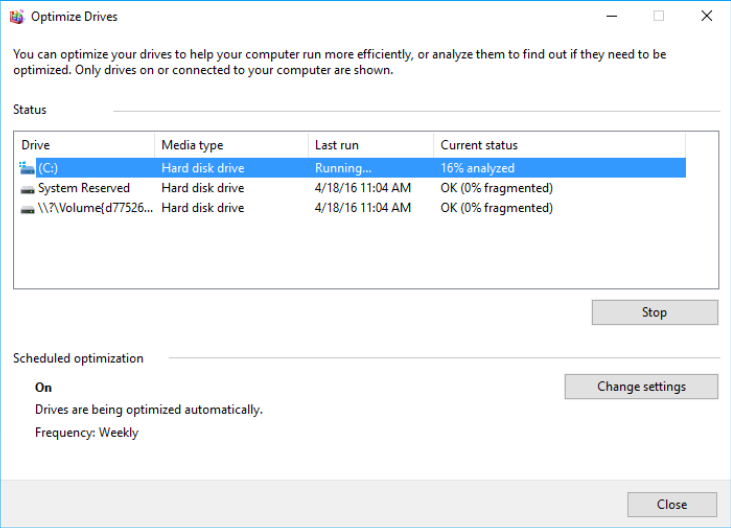
- Run the Disk Defragmenter: Windows includes a Disk Defragmenter program in the Control Panel. If your computer is running slowly, running Disk Defragmenter can help to speed it up.
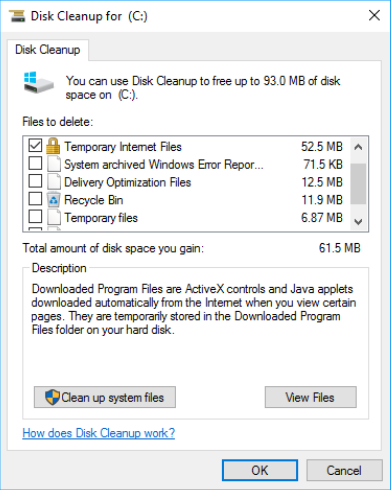
- Run a Disk Cleanup: Windows also includes a Disk Cleanup program in the Control Panel. It scans your computer for temporary files and other files that can be deleted. You can then delete the files to free up space on your hard drive.
Lesson 18: Creating a Safe Workspace
Creating a safe workspace
In addition to keeping your computer healthy, it's important to think about your own health. Using a computer involves a lot of repetitive motions such as typing and using the mouse. Over time, these motions can begin to negatively impact your body, especially your wrists, neck, and back. Staring at a monitor for long periods of time can also cause eye strain. To minimize these risks, you should take a few moments to make sure your workspace is arranged in a comfortable and healthy way.
Watch the video below to learn more about arranging your workspace to avoid strain and injury.
Avoiding strain and injury
Computer ergonomics is the science of equipment design and how specific equipment usage and placement can reduce a user's discomfort and increase productivity. Some equipment is designed with special attention to ergonomics, like ergonomic keyboards and ergonomic chairs.
Here are a few tips to help you avoid injury in your workspace.
- Adjust your chair: Make sure your chair is adjusted to allow you to sit in a natural, comfortable position. Many office chairs are specially designed to support the lower back and promote good posture.
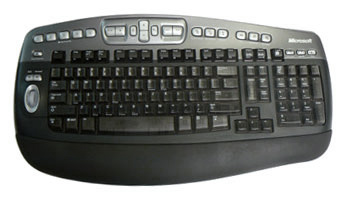
- Keep the keyboard at a comfortable height: Try to place the keyboard in a position that allows you to keep your wrists straight and relaxed to avoid wrist strain. Many desks have a keyboard tray that can keep the keyboard at a better height. You can also buy an ergonomic keyboard that is designed to minimize wrist strain.
- Keep the mouse close to the keyboard: If possible, place the mouse right next to the keyboard. If the mouse is too far away, it may be uncomfortable or awkward to reach for it.
- Place the monitor at a comfortable distance: The ideal position for a monitor is 20 to 40 inches away from your eyes. It should also be at eye level or slightly lower.
- Avoid clutter: The computer area can quickly become cluttered with paper, computer accessories, and other items. By keeping this area as uncluttered as possible, you can improve your productivity and prevent strain and injury.
- Take frequent breaks: It's important to take breaks while you're working at your computer. To avoid eye strain, you should look away from the monitor every once in a while. You can also stand up and walk around to avoid sitting in the same position for long periods of time. Programs such as Workrave can automatically remind you to take breaks.
For more information on setting up a computer workspace, visit the Computer Workstations eTool from the Occupational Safety & Health Administration (OSHA).
Lesson 19: Basic Troubleshooting Techniques
Troubleshooting
Do you know what to do if your screen goes blank? What if you can't seem to close an application, or can't hear any sound from your speakers? Whenever you have a problem with your computer, don't panic! There are many basic troubleshooting techniques you can use to fix issues like this. In this lesson, we'll show you some simple things to try when troubleshooting, as well as how to solve common problems you may encounter.
General tips to keep in mind
There are many different things that could cause a problem with your computer. No matter what's causing the issue, troubleshooting will always be a process of trial and error—in some cases, you may need to use several different approaches before you can find a solution; other problems may be easy to fix. We recommend starting by using the following tips.
- Write down your steps: Once you start troubleshooting, you may want to write down each step you take. This way, you'll be able to remember exactly what you've done and can avoid repeating the same mistakes. If you end up asking other people for help, it will be much easier if they know exactly what you've tried already.
- Take notes about error messages: If your computer gives you an error message, be sure to write down as much information as possible. You may be able to use this information later to find out if other people are having the same error.
- Always check the cables: If you're having trouble with a specific piece of computer hardware, such as your monitor or keyboard, an easy first step is to check all related cables to make sure they're properly connected.
- Restart the computer: When all else fails, restarting the computer is a good thing to try. This can solve a lot of basic issues you may experience with your computer.
Using the process of elimination
If you're having an issue with your computer, you may be able to find out what's wrong using the process of elimination. This means you'll make a list of things that could be causing the problem and then test them out one by one to eliminate them. Once you've identified the source of your computer issue, it will be easier to find a solution.
Scenario:
Let's say you're trying to print out invitations for a birthday party, but the printer won't print. You have some ideas about what could be causing this, so you go through them one by one to see if you can eliminate any possible causes.
First, you check the printer to see that it's turned on and plugged in to the surge protector. It is, so that's not the issue. Next, you check to make sure the printer's ink cartridge still has ink and that there is paper loaded in the paper tray. Things look good in both cases, so you know the issue has nothing to do with ink or paper.
Now you want to make sure the printer and computer are communicating correctly. If you recently downloaded an update to your operating system, it might interfere with the printer. But you know there haven't been any recent updates and the printer was working yesterday, so you'll have to look elsewhere.
You check the printer's USB cord and find that it's not plugged in. You must have unplugged it accidentally when you plugged something else into the computer earlier. Once you plug in the USB cord, the printer starts working again. It looks like this printer issue is solved!
This is just one example of an issue you might encounter while using a computer. In the rest of this lesson, we'll talk about other common computer problems and some ways to solve them.
Simple solutions to common problems
Most of the time, problems can be fixed using simple troubleshooting techniques, like closing and reopening the program. It's important to try these simple solutions before resorting to more extreme measures. If the problem still isn't fixed, you can try other troubleshooting techniques.
Problem: Power button will not start computer
- Solution 1: If your computer does not start, begin by checking the power cord to confirm that it is plugged securely into the back of the computer case and the power outlet.
- Solution 2: If it is plugged into an outlet, make sure it is a working outlet. To check your outlet, you can plug in another electrical device, such as a lamp.
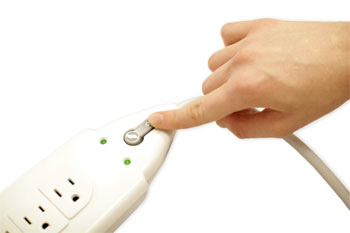
- Solution 3: If the computer is plugged in to a surge protector, verify that it is turned on. You may have to reset the surge protector by turning it off and then back on. You can also plug a lamp or other device into the surge protector to verify that it's working correctly.
- Solution 4: If you are using a laptop, the battery may not be charged. Plug the AC adapter into the wall, then try to turn on the laptop. If it still doesn't start up, you may need to wait a few minutes and try again.
Problem: An application is running slowly
- Solution 1: Close and reopen the application.
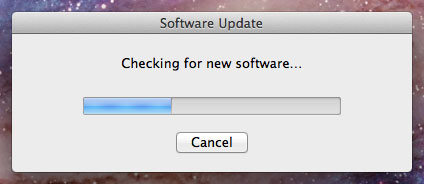
- Solution 2: Update the application. To do this, click the Help menu and look for an option to check for Updates. If you don't find this option, another idea is to run an online search for application updates.
Problem: An application is frozen
Sometimes an application may become stuck, or frozen. When this happens, you won't be able to close the window or click any buttons within the application.
- Solution 1: Force quit the application. On a PC, you can press (and hold) Ctrl+Alt+Delete (the Control, Alt, and Delete keys) on your keyboard to open the Task Manager. On a Mac, press and hold Command+Option+Esc. You can then select the unresponsive application and click End task (or Force Quit on a Mac) to close it.
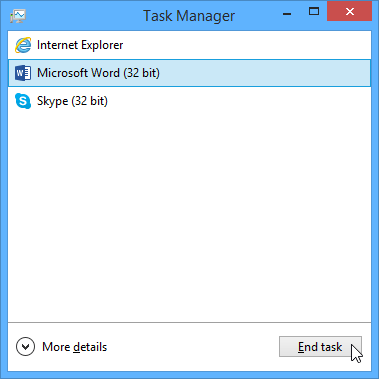
- Solution 2: Restart the computer. If you are unable to force quit an application, restarting your computer will close all open apps.
Problem: All programs on the computer run slowly
- Solution 1: Run a virus scanner. You may have malware running in the background that is slowing things down.
- Solution 2: Your computer may be running out of hard drive space. Try deleting any files or programs you don't need.
- Solution 3: If you're using a PC, you can run Disk Defragmenter. To learn more about Disk Defragmenter, check out our lesson on Protecting Your Computer.
Problem: The computer is frozen
Sometimes your computer may become completely unresponsive, or frozen. When this happens, you won't be able to click anywhere on the screen, open or close applications, or access shut-down options.
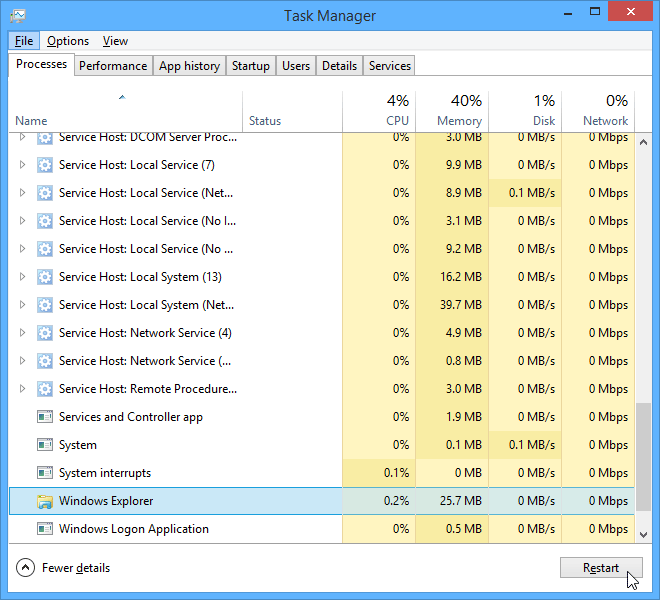
- Solution 1 (Windows only): Restart Windows Explorer. To do this, press and hold Ctrl+Alt+Delete on your keyboard to open the Task Manager. Next, locate and select Windows Explorer from the Processes tab and click Restart. You may need to click More Details at the bottom of the window to see the Processes tab.
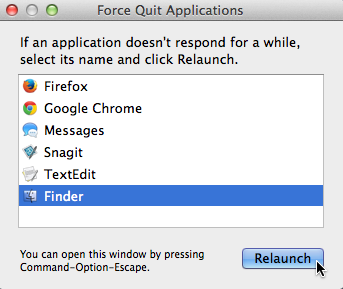
- Solution 2 (Mac only): Restart Finder. To do this, press and hold Command+Option+Esc on your keyboard to open the Force Quit Applications dialog box. Next, locate and select Finder, then click Relaunch.
- Solution 3: Press and hold the Power button. The Power button is usually located on the front or side of the computer, typically indicated by the power symbol. Press and hold the Power button for 5 to 10 seconds to force the computer to shut down.
- Solution 4: If the computer still won't shut down, you can unplug the power cable from the electrical outlet. If you're using a laptop, you may be able to remove the battery to force the computer to turn off. Note: This solution should be your last resort after trying the other suggestions above.
Problem: The mouse or keyboard has stopped working
- Solution 1: If you're using a wired mouse or keyboard, make sure it's correctly plugged into the computer.
- Solution 2: If you're using a wireless mouse or keyboard, make sure it's turned on and that its batteries are charged.
Problem: The sound isn't working
- Solution 1: Check the volume level. Click the audio button in the top-right or bottom-right corner of the screen to make sure the sound is turned on and that the volume is up.
- Solution 2: Check the audio player controls. Many audio and video players will have their own separate audio controls. Make sure the sound is turned on and that the volume is turned up in the player.

- Solution 3: Check the cables. Make sure external speakers are plugged in, turned on, and connected to the correct audio port or a USB port. If your computer has color-coded ports, the audio output port will usually be green.
- Solution 4: Connect headphones to the computer to find out if you can hear sound through the headphones.
Problem: The screen is blank
- Solution 1: The computer may be in Sleep mode. Click the mouse or press any key on the keyboard to wake it.
- Solution 2: Make sure the monitor is plugged in and turned on.
- Solution 3: Make sure the computer is plugged in and turned on.
- Solution 4: If you're using a desktop, make sure the monitor cable is properly connected to the computer tower and the monitor.
Solving more difficult problems
If you still haven't found a solution to your problem, you may need to ask someone else for help. As an easy starting point, we'd recommend searching the Web. It's possible that other users have had similar problems, and solutions to these problems are often posted online. Also, if you have a friend or family member who knows a lot about computers, they may be able to help you.

Keep in mind that most computer problems have simple solutions, although it may take some time to find them. For difficult problems, a more drastic solution may be required, like reformatting your hard drive or reinstalling your operating system. If you think you might need a solution like this, we recommend consulting a professional first. If you're not a computer expert, it's possible that attempting these solutions could make the situation worse.
Lesson 20: How to Use Your Computer's Built-in Help
How to use your computer's built-in help
Everyone needs to look for help sometimes. Luckily, when you want help with a computer program, it’s usually easy to find. Most programs have a help feature somewhere, and learning how to use it can make a big difference. You may not find everything you need, but your computer’s built-in help is a great place to start.
Different programs integrate help features in different ways. Some are like interactive manuals included with the program that you can open with a menu, while others are just links to the developer’s support website. But they’re always designed with the same thing in mind: to help you learn the features of the program and to solve problems yourself.
How to access built-in help
Most programs have one of two ways to access built-in help. For example, Adobe Photoshop Elements has a Help menu with a variety of options. Many of these options open Adobe’s support page in your web browser, while others access features within the program itself.
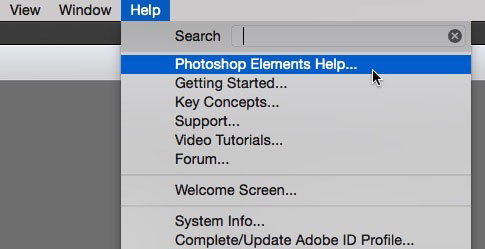
Other programs have a help button, usually near the top-right corner of the window. For example, Microsoft Office 2013 has a small question mark icon that opens the help file.
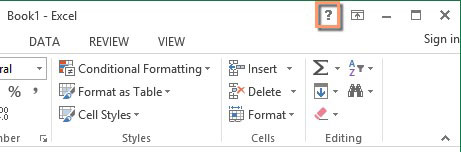
Features of a help file
Help files can be organized in a variety of ways, including as a table of contents, FAQ, or searchable database.
A search box is all you’ll see when you open the help screen in Office 2013. Much like a search engine, you type keywords in the search bar, and it will display topics relevant to the keywords you entered.
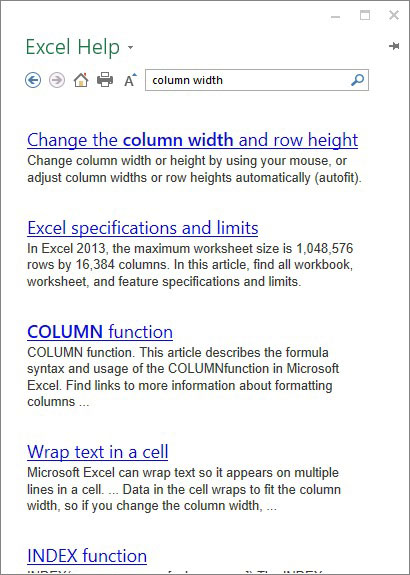
The table of contents for Mozilla’s support page is a broad list of categories. Clicking any of these hyperlinks will lead to a list of narrower topics and specific help articles. There’s also a search bar at the top-right.
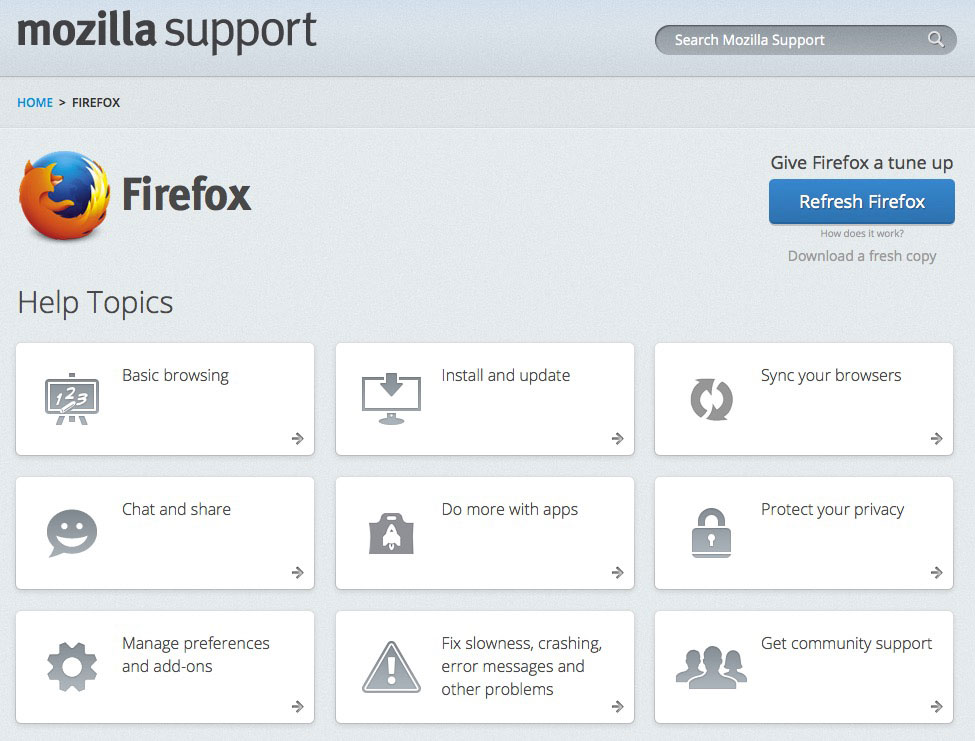
Although built-in help can be useful, it may not always have the information you want. If you can’t find what you’re looking for or don’t understand what you've found, you can usually ask someone you know, do a Google search, or contact support staff. It can take a little extra time and effort, but learning how to find solutions on your own is a valuable skill—and you’ll get better at it with practice.
Lesson 21: Learning a New Program
Learning a new program
You ask a friend who is good with computers to help you do something in a new program. The friend says she hasn't used the program before but will give it a try. Two minutes later, she's figured out what to do.
How did she do that? If you've experienced a situation like the one just described, it might seem like magic. But your friend probably just applied what she knew about computers and computer programs to the program you were trying to use. In this lesson, we'll show you how you can do the same thing.
You know more than you think you do!
Starting to use a new computer program can seem overwhelming, but keep in mind that you already know more than you think you know. Even if the screen in front of you looks totally unfamiliar, everything you've learned so far about your computer and other programs will help you figure out what to do next. As you spend more time using the new program, it will start to feel more familiar.
Look for similarities with programs you've used
The first thing you'll want to do when opening a new program is look for familiar features. You may not realize it, but most computer programs have certain basic features in common—so once you've learned to use one program, you'll already know something about any other ones you try to use. For example, many keyboard shortcuts remain the same from program to program.
Most programs also have File and Edit menus, and they'll usually be in the same place: at the top of your screen, either as a drop-down menu or in a ribbon. The File and Edit menus tend to contain similar functions in any program. So if you know the Print function appears in the File menu in Microsoft Word, you'll have a good idea of where to look for it in Google Drive, as in the image below.
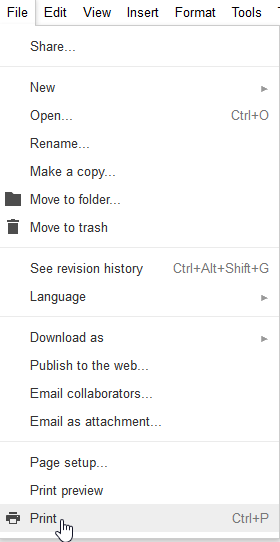
Even if you're switching from a PC to a Mac or vice versa, keyboard shortcuts will remain mostly the same. Just substitute the Command key on a Mac for the Ctrl key on a PC. For example, the shortcut for the Cut function is Ctrl+X on a PC; on a Mac, it's Command+X.
Check for hidden toolbars or panels
Let's say you've checked your new program for familiar functions, but there are a few you just can't find. Don't give up! If you believe a particular function should be there, you're probably right—you may just need to open it. Many programs have toolbars, sidebars, or panels you can hide or make visible, and they are often hidden by default when you start the program. If you can't find a function you need, try clicking the View or Window menu to check for hidden toolbars, as shown in the image of the Firefox web browser below.
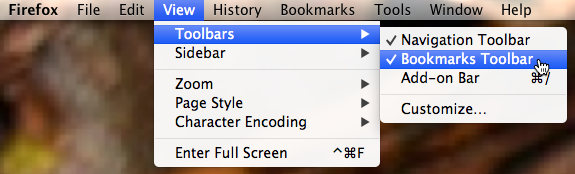
If you're having trouble
If the program you're trying to use has a lot of unfamiliar elements—or if there's a feature you simply don't know how to use—don't despair. There are still some simple things you can do to find your way around a program.
Use the help feature
Software companies know that most users will have questions about how to use their programs, which is why they include built-in help features. You can usually access a program's help feature by clicking a Help menu (sometimes represented by a question mark icon) at the top of your screen. There, you'll find instructions on how to do things, troubleshooting tips, and answers to frequently asked questions. Some help features will even include links to online help forums, where users can post answers to each other's questions. Remember, if something isn't obvious to you, it probably isn't obvious to other users either, so the help section should have some information on it.
Google it!
If you haven't found the answer in the program's help feature, try searching for a solution on Google. You will probably find tutorials or posts from other users explaining how to use the program. You may also want to search YouTube for video tutorials on the program you're using.

For tips on how to search effectively with Google, check out our lesson on Google Search Tips.
Lesson 22: Bringing Your Files with You
Bringing your files with you
When you're working on a document or other computer file, you can always save it to your computer's hard drive. But sometimes you may want to bring your file with you and open it on a different computer. In this lesson, we'll talk about two ways to save your files so you can access them from almost anywhere.
- Flash drive: Flash drives are small removable hard drives that plug into the USB ports on your computer. They are relatively inexpensive (usually less than $20) and can be purchased at any store with an electronics section.
- Cloud storage: Cloud storage means you save your files on servers on the Internet using an account with a cloud service. With cloud storage, you can access your files from any computer with Internet access without having to keep track of a physical device.
Flash drives and the cloud can also be used to back up your files. To learn more, check out our lesson on Backing Up Your Files.
Using a flash drive
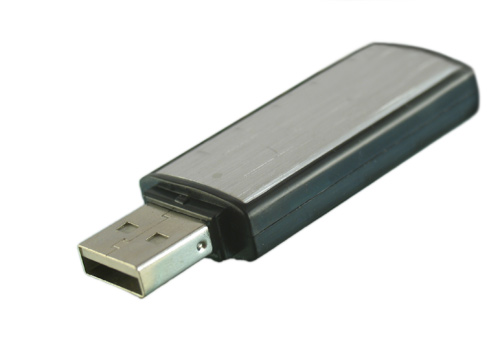
Flash drives make it easy to carry your important files and documents with you in a portable form. You should always back up the files on your flash drive elsewhere, however, just in case it gets lost or breaks.
To connect a flash drive:
- Insert the flash drive into a USB port on your computer. You should find a USB port on the front, back, or side of your computer (the location may vary depending on whether you have a desktop or laptop).
- If you're using Windows, a dialog box may appear. If it does, select Open folder to view files. On a Mac, a flash drive icon will usually appear on the desktop.
- If a dialog box does not appear, open Windows Explorer—or Finder if you're using a Mac—and select the flash drive on the left side of the window. Note that the name of the flash drive may vary.
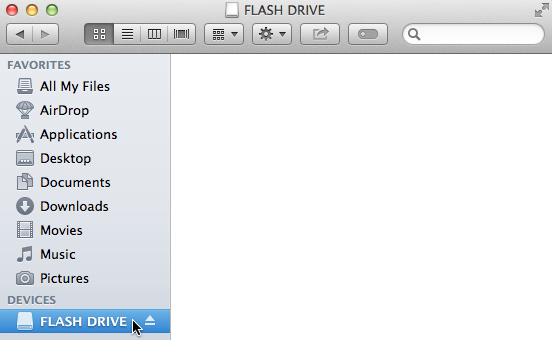
To work with a flash drive:
Once you've connected a flash drive, you can work with it just like any other folder on your computer, including moving and deleting files.
- If you want to copy a file from your computer to the flash drive, click and drag the file from your computer to this window.
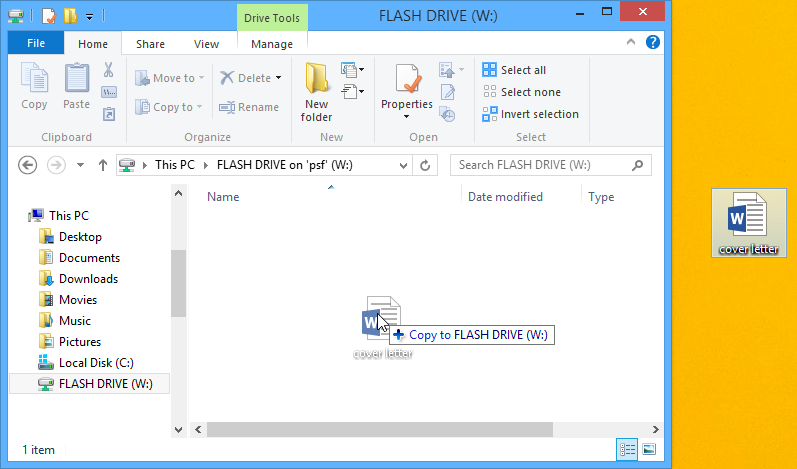
- The file will be duplicated, and this new version will be saved to the flash drive. The original version of the file will still be saved to your computer.
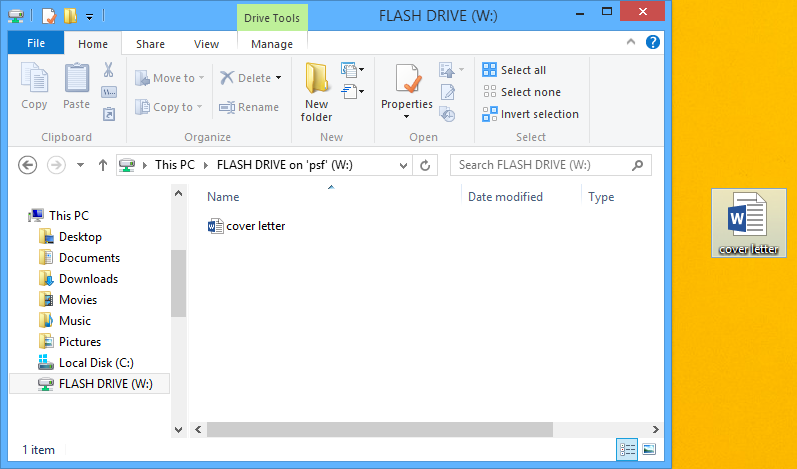
- If you want to copy a file from your flash drive to your computer, click and drag the file from this window to your computer.
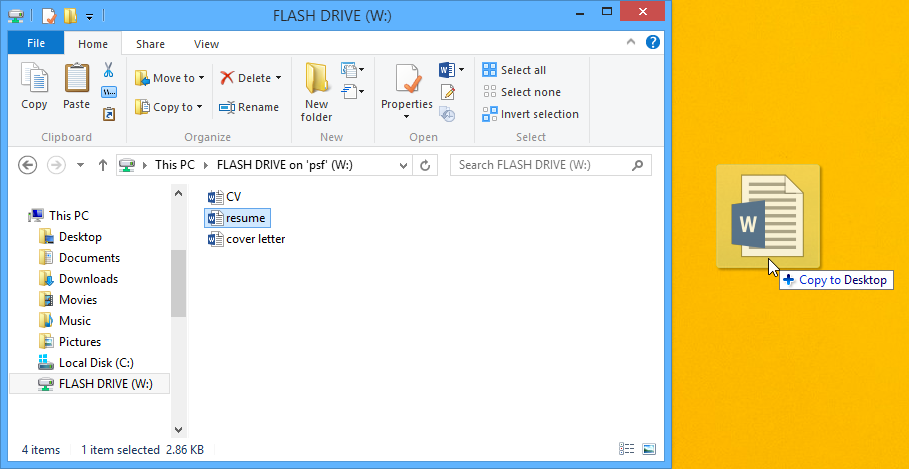
- If you want to remove a file from your flash drive, click and drag the file to the Recycle Bin on a PC or the Trash can on a Mac. A dialog box may appear appear. If it does, click Yes to confirm that you want to permanently delete the file.
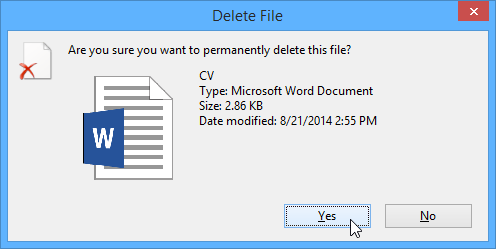
If a dialog box does not appear, you may need to empty the Trash can to permanently delete the file.
To safely remove a flash drive:
When you're done using a flash drive, don't remove it from the USB port just yet. You'll need to make sure to disconnect it properly to avoid damaging files on the drive.
- Right-click the flash drive and select Disconnect (or Eject).
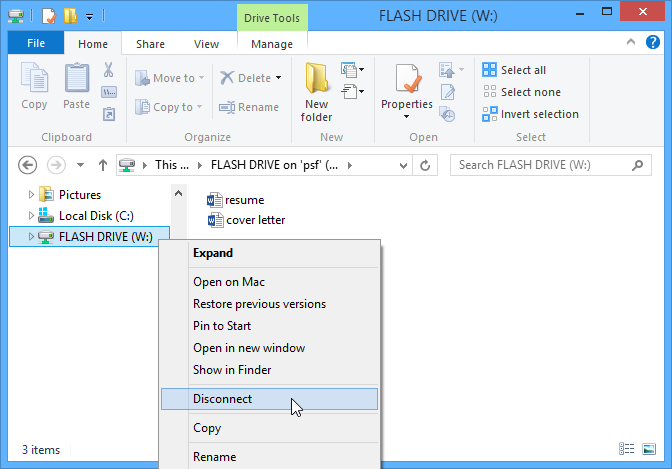
- You can now safely remove the flash drive from the USB port.
If you're using a Mac, you can also click the Eject button next to the flash drive in Finder to eject it.
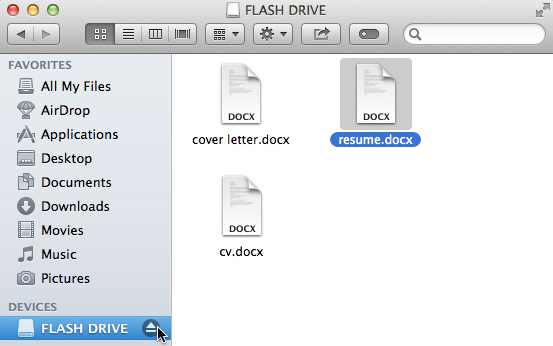
Saving files to the cloud
There are many services that allow you to create a free account and save documents, images, and other files to the cloud. Some of the most popular are Google Drive, OneDrive, and Dropbox. The free storage space that comes with these accounts (usually around 15GB) should be plenty if you're using your account for regular personal, work, or school purposes. If you own a business and want to keep all of your documents in the cloud, you may want to pay your cloud service for more storage.
Unlike physical media, the cloud can't break or get lost, so you don't necessarily need to back up the files you keep on it. Files in the cloud are also easier to share so you can collaborate with friends and coworkers. However, when you save something online, there's always a risk that unauthorized users will try to gain access to your personal information. To protect your files, create a strong password and pay attention to the privacy settings and policies of the cloud service you're using.
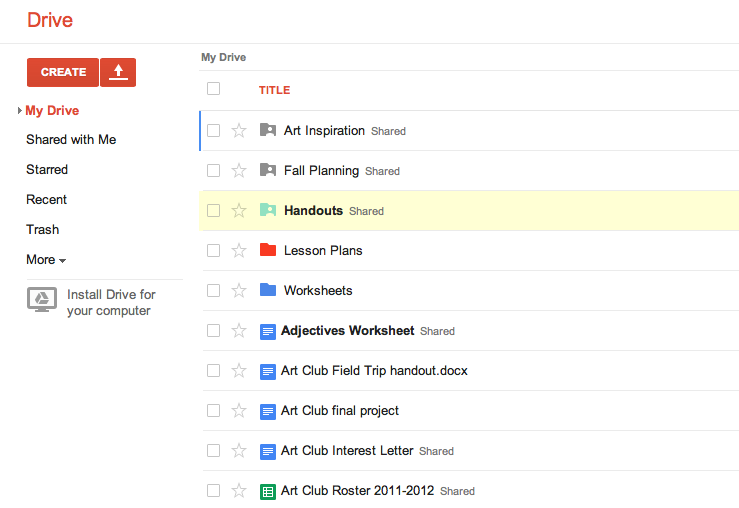
To learn more about services that allow you to store your files in the cloud, check out our tutorials on Google Drive and OneDrive and Office Online.
Lesson 23: Using Accessibility Features
What are accessibility features?
Accessibility features are designed to help people with disabilities use technology more easily. For example, a text-to-speech feature may read text out loud for people with limited vision, while a speech-recognition feature allows users with limited mobility to control the computer with their voice. In this lesson, we'll introduce you to some common accessibility features. We'll also discuss assistive technology that you can attach to your computer for greater accessibility.
Common accessibility features
Although some accessibility features require special software downloads, many are built into the operating system of your computer or mobile device. Here are just a few types of accessibility features you may already have on your device.
- Features for blind or low-vision computer users: Features such as text-to-speech allow users to hear what's on the screen instead of reading it. Other features, like high-contrast themes and enlarged cursors, make it easier for users with limited vision to see the screen.
- Features for deaf or low-hearing computer users: Closed-captioning helps to convey audio information to deaf users in visual form. Mono audio systems transmit right and left audio signals through both earbuds and headphones so users with limited hearing in one ear will not miss part of what they are listening to.
- Features for limited-mobility computer users: Keyboard shortcuts are convenient for many people, but they are especially helpful to those with difficulty physically manipulating a mouse. For users who have difficulty pressing several keys at once, sticky keys allows them to press keys one at a time to activate a shortcut.
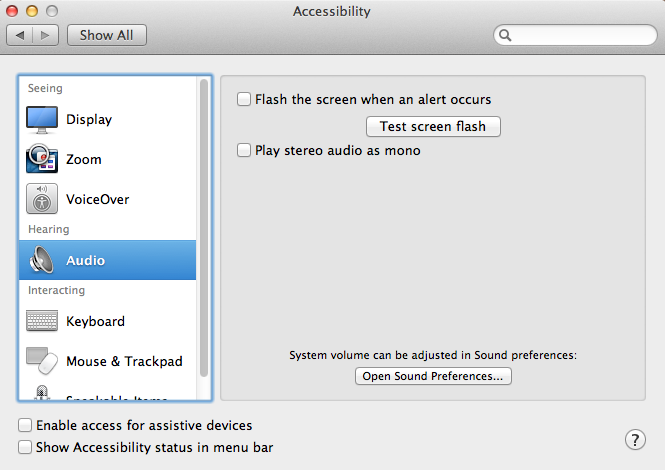
Using accessibility features
Most computers and mobile devices come with built-in accessibility features, although they'll usually need to be turned on before you can use them. Let's take a look at how to locate these features for your device.
- In Windows, open the Settings app (or Control Panel in Windows 8 and earlier), then click Ease of Access.
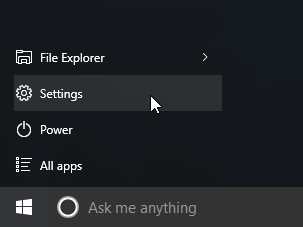
- In macOS, open System Preferences, then click Accessibility (or Universal Access in older versions).
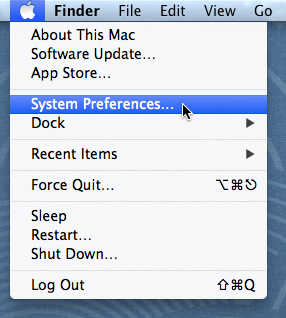
- On mobile devices that use Android or iOS, open the Settings app, then locate the Accessibility section. On iOS devices, you'll find it within the General settings category.
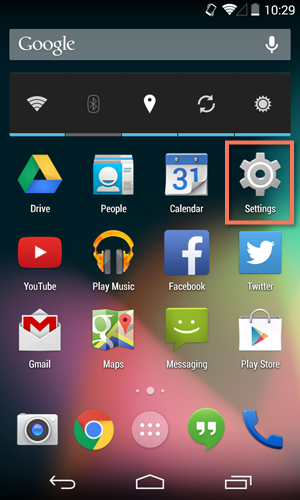
Web accessibility
Most web browsers also offer their own built-in accessibility features. You'll usually find these options in your browser's settings.
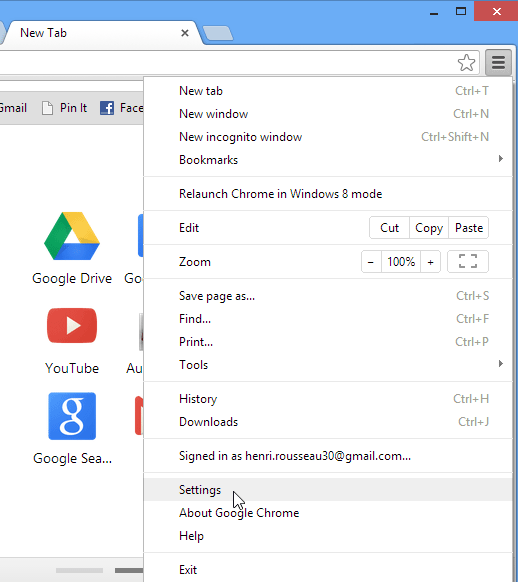
Before you adjust these settings, you may want to try zooming instead. Zooming is an easy way to make webpages easier to read, and it works the same way in most browsers. If you're using a browser in Windows, you can zoom in or out by pressing Ctrl+ or Ctrl- (hold down the Ctrl key and press the + or - key). If you're using a Mac, you'll press Command+ or Command-.
To return to the default zoom level, press Ctrl+0 (hold down the Ctrl key and press the zero key). If you're using a Mac, press Command+0.
Accessibility features in specific software
There are many more accessibility features you can use, depending on the type of computer you have and the software you use. The resources below will direct you to accessibility features for some of the most commonly used applications.
- Microsoft Accessibility: Here, you'll find news on Microsoft's accessibility projects, as well as help pages on accessibility features in the Windows operating system and in the Microsoft Office suite.
- Apple Accessibility: This is Apple's overview site for accessibility features on Macs, iPods, iPhones, and iPads. From here, you can navigate to help documents for specific features.
- Google Accessibility: This is Google's help site for accessibility features on Android phones and tablets and in Chrome.
- Accessibility Features in Firefox: This is Mozilla's official help site for Firefox's accessibility features.
- AppleVis: This community-based website offers tips, tutorials, and product reviews for blind and low-vision users of Apple products.
Assistive technology devices
As you've already seen, software can do a lot to make computers more accessible for disabled users. However, some accessibility features require extra hardware, or assistive technology. Most assistive-technology devices are similar to keyboards and speakers—they are peripherals that can be plugged into the main computer. Here are some common types of assistive technology you may encounter.
- Screen magnifiers: Screen magnifiers can be placed over your computer's monitor to ensure the content on the screen always appears magnified. Today, most people use the magnifier or zoom features on their operating systems to view content, but external magnifiers are still available as well.
- Alternative keyboards: For people who have difficulty using standard keyboards, there are a range of alternative options. For example, users can purchase keyboards with larger keys that are easier to see or press. They can also buy keyboards with alternative key arrangements, including arrangements for people who can only type with one hand or with a limited number of fingers.
- Switch-adapted peripherals: Switch devices allow people with limited mobility to control technology with very small motions, such as a puff of breath or a head movement. Switch-adapted mice and keyboards make it possible for disabled users to interact with computers even if they are unable to operate peripherals with their hands.


No comments:
Post a Comment